

Leave a Review


When closing and reopening Google Chrome, do you want your previous tabs restored, or would you prefer starting fresh with a clean New Tab page? And why does clicking the Home button sometimes lead to an unexpected website? On desktop versions of Google Chrome, these two features are controlled by entirely separate settings. In this guide, we demonstrate how to restore your previous session, launch with a curated set of favorite sites, and independently configure the Home button—without needing any third-party extensions or extra software.
Before making adjustments, it is vital to distinguish between these two browser behaviors:
Changing one of these settings does not alter the other. Please note that these instructions apply to desktop Chrome (Windows, macOS, Linux); mobile browser menus differ slightly depending on language and version updates.
If you prefer a clean workspace every time you open Chrome:
Selecting this option ensures Chrome opens a fresh New Tab page upon launch, ideal if you prefer manually organizing your work. Note that this only affects the starting screen and does not clear your historical browsing data or cookies.
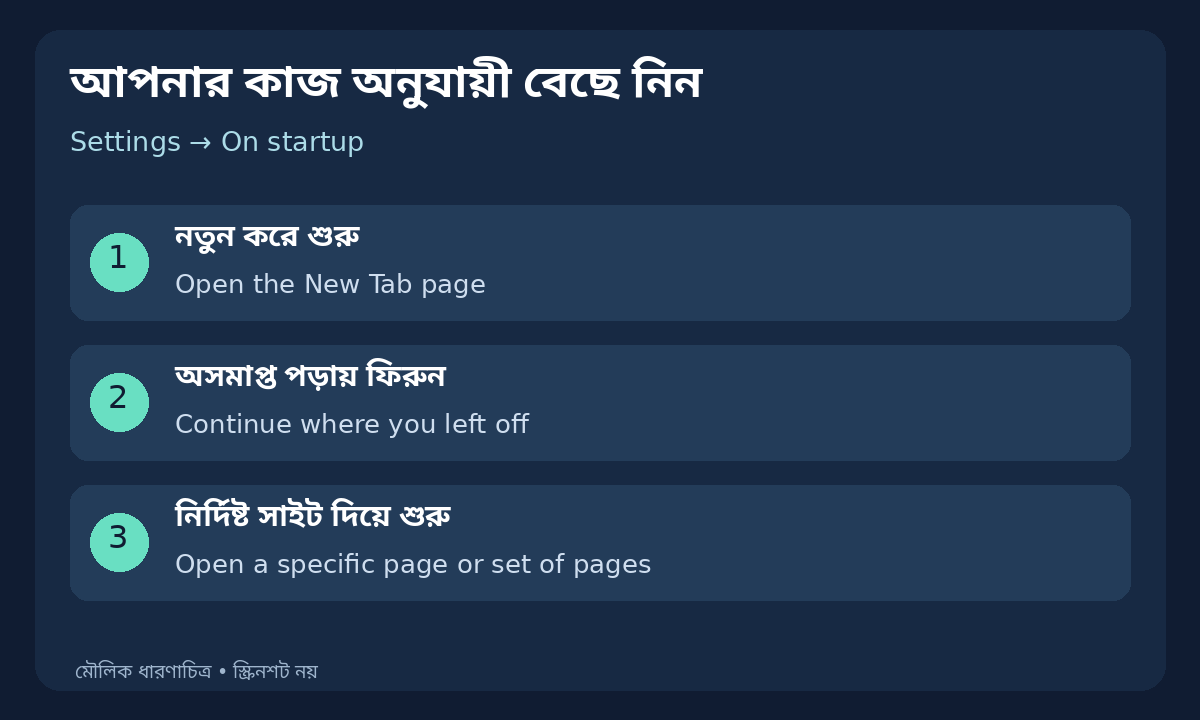
Image: Conceptual overview of Chrome's three primary startup choices.
If you want all open tabs from your previous session to reload automatically when you reopen Chrome:
Privacy & Security Advisory: According to Google's browser architecture, active cookies and site sessions are preserved, meaning previously logged-in accounts will reopen directly. If you use a shared or public computer, never leave personal tabs open and always sign out of sensitive accounts. Additionally, tab restoration does not guarantee that unsaved web forms or drafts will be recovered—always save important work before exiting the browser.
If you have daily go-to sites (such as news outlets, webmail, or work dashboards):
Alternatively, click Use current pages to instantly add all tabs currently open in your active window (review your open tabs beforehand to avoid adding irrelevant links). To modify or remove any address later, click the three dots beside the URL and choose Edit or Delete.
To control where the Home button directs you:
Now locate and click the Home button (the house icon to the left of the address bar). The result you see here reflects your Homepage setting, not your Startup setting.
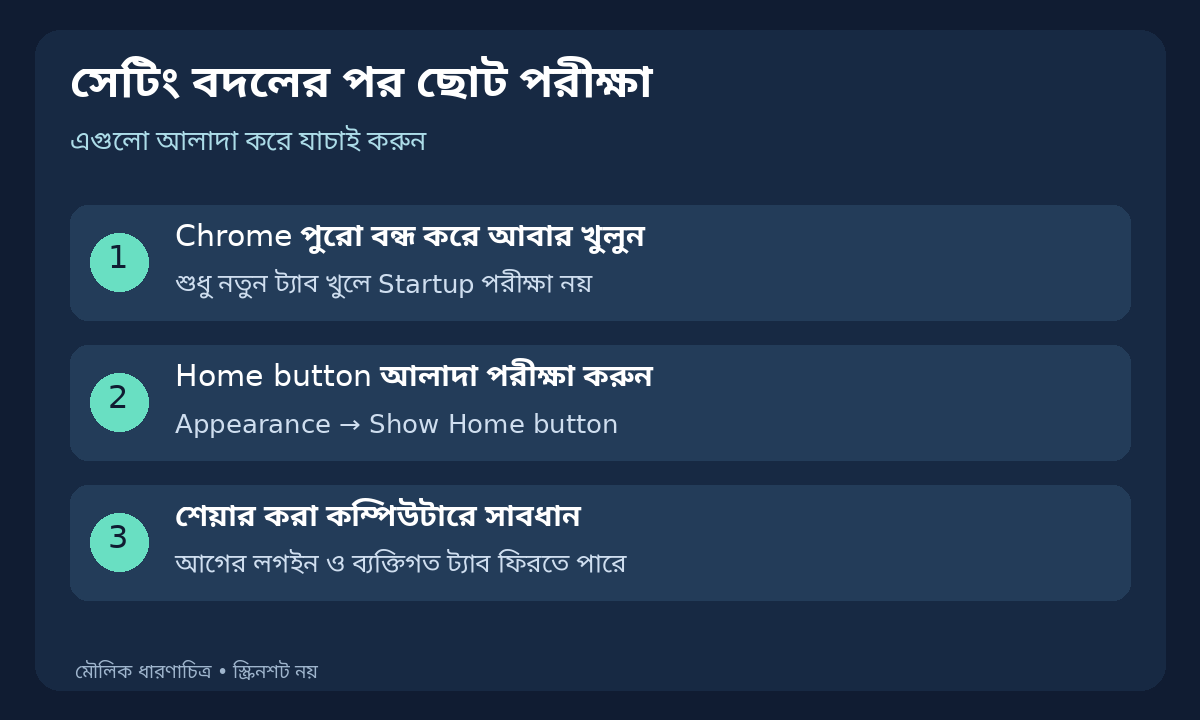
Image: Quick verification checklist after adjusting browser settings.
In summary: use New Tab for a clean slate, Continue where you left off to resume prior work, and Specific pages for a curated launch routine. Keep the Home button configuration distinct, and you will avoid unnecessary browser confusion.
Reference: Google Chrome Help: Set your homepage and startup page. For more actionable tech tutorials, explore AroraShop!