
Leave a Review


To be completely honest, opening certain free mobile apps these days makes you feel like the entire app was created solely to bombard you with advertisements. You are in the middle of an exciting mobile game, and suddenly a forced 30-second unskippable video ad halts everything. You open a news app to read a quick article, and aggressive floating pop-ups obscure your screen.
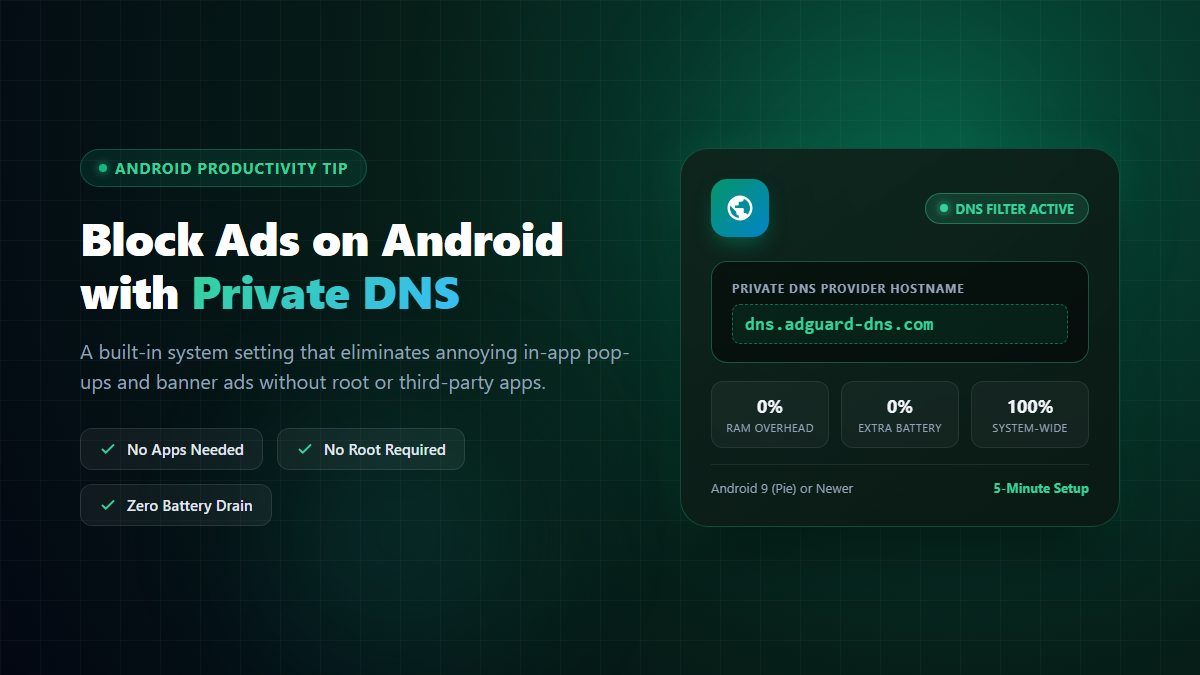
While achieving a 100% ad-free smartphone experience across the entire web may be impossible, tweaking a single built-in Android setting brought significant relief to my daily phone experience — and it requires no extra apps, no rooting, and no technical headaches.
That hidden gem is called Private DNS.

dns.adguard-dns.com in the Private DNS provider field.The setting is already built directly into Android OS, but different phone manufacturers place it in slightly different submenus. Here is how to find it:
dns.adguard-dns.comdns.adguard-dns.com and tap Save.That is all! You do not need to install any APK, grant suspicious permissions, or restart your phone.
To explain it in plain English: whenever an app or web browser attempts to display an advertisement, it first asks a Domain Name System (DNS) server for the specific internet address of that ad company's advertising and tracking servers.
When you set your Private DNS provider to an ad-filtering resolver, the DNS server instantly recognizes known ad domains and tracker hosts. Instead of connecting you to the ad server, it returns a blank response (a "sinkhole"). As a result, the advertisement never downloads to your phone in the first place.
To avoid disappointment, it helps to understand what DNS filtering can realistically achieve:
Independent app developers build useful tools and games to make a living. If there is a particular utility or game that you use daily, check if the developer offers an affordable "Pro" or "Remove Ads" one-time purchase. Supporting good software ensures it stays maintained.
Be extremely wary of third-party websites offering modified "ad-free" APKs or obscure ad-blocker apps outside official app stores. In many cases, these APKs bundle malware, trojans, or spyware that do far more harm to your privacy than the ads they claim to stop.
Occasionally, strict corporate Wi-Fi networks, captive portals (hotel/airport Wi-Fi logins), or sensitive banking apps might conflict with a custom DNS provider. If a specific banking app or office portal refuses to connect, simply head back to Settings → Private DNS, temporarily switch it to Off or Automatic, complete your task, and switch it back on afterward.
Testing Private DNS takes barely two minutes of your time. If you decide you don't like it or if a critical app behaves strangely, reverting back to default takes less than thirty seconds.
Ever since I enabled this setting on my Android device, the constant friction of aggressive ads and invasive tracking has dropped dramatically. Give it a try — your mobile experience will feel significantly cleaner.

Please login to live chat or contact via WhatsApp