


Leave a Review
10-Minute Google Account Security Checkup: A Step-by-Step Audit Guide
27 Oct 2026 • 5 min read • 28 views •
Share:

10-Minute Google Account Security Checkup: A Step-by-Step Audit Guide

A
AroraShop
Content Writer

10-Minute Google Account Security Checkup: A Step-by-Step Audit Guide

I once picked up a close friend's phone and was shocked by what I found: his Google account was still actively logged in on several older devices, including a smartphone he had sold off over a year ago. He had completely forgotten about it and had no idea his private data was still exposed.

From that very day, I made it a personal routine to run a security health checkup on my Google account once or twice every year. It doesn't take much effort or technical knowledge — you can easily finish the entire audit in about 10 minutes while sipping your morning cup of tea.

Because your Google account ties directly into your Gmail, private Google Photos, Google Drive documents, and YouTube activity, guarding it is guarding your entire digital identity.
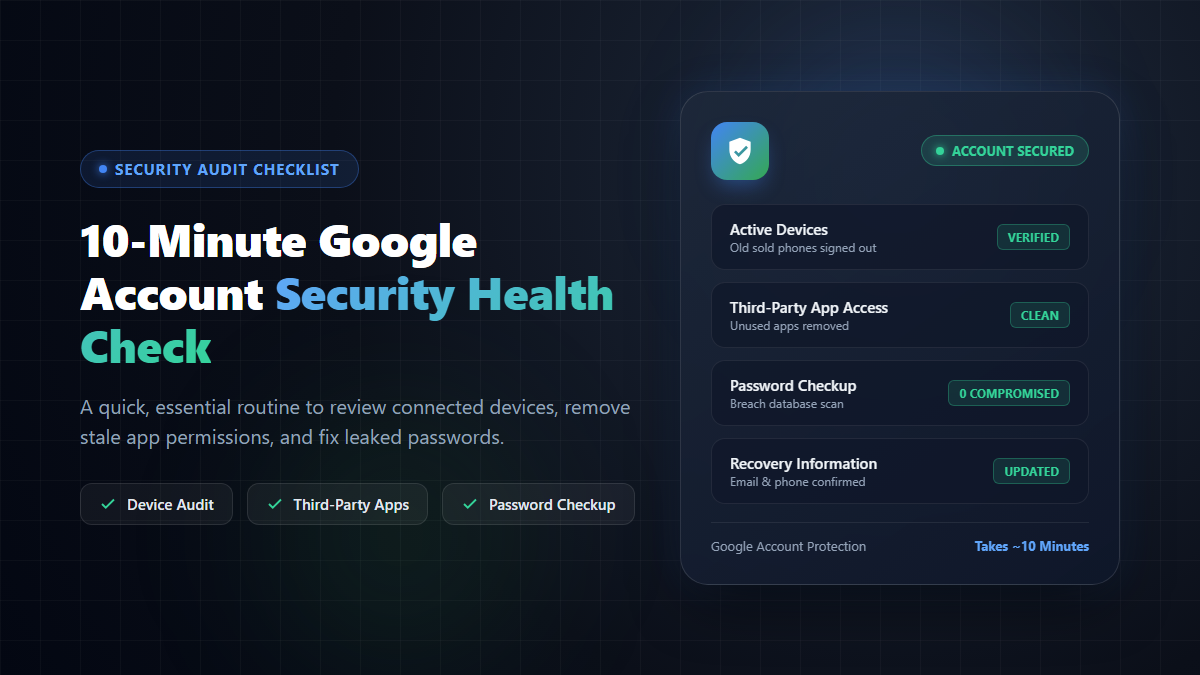
Google Account Security Checkup and audit guide illustration banner
Performing a routine 10-minute security audit keeps your Google account safe from unauthorized devices and leaked credentials.

Quick Summary: 4 Essential Areas to Audit

  • Your Devices: Review all connected smartphones, tablets, and computers, and instantly revoke access to any unrecognized or previously sold hardware.
  • Third-Party App Access: Remove obsolete apps and websites that you previously authorized with Google Sign-In but no longer use.
  • Recent Security Activity: Spot any unusual sign-ins, IP addresses, or suspicious location alerts.
  • Password Manager Checkup: Scan your saved credentials against known data breach databases and replace compromised or reused passwords.
  • Account Recovery Methods: Verify that your backup phone number and secondary email address are current.

How to Access Your Google Security Dashboard

To begin your audit, navigate to your central security controls through either of these two straightforward paths:

  1. Via Web Browser: Visit myaccount.google.com/security and sign in.
  2. Via Your Android or iOS Phone: Open your phone's Settings → tap Google → select Manage your Google Account → switch to the Security tab.

Core Steps for Your 10-Minute Security Checkup

1. Audit "Your Devices"

Scroll down to the Your devices section and click Manage all devices. Here, Google displays every single device that has accessed your account within the past several weeks or months.

  • Look closely through the list for any hardware you do not recognize.
  • Check for old phones, tablets, or work laptops that you have traded in, handed down to family members, or sold off.
  • If you spot any device that should not be there, click on it and immediately select Sign out. This instantly invalidates that session token.

2. Clean Up "Third-Party Apps & Services"

Over the years, we frequently click "Sign in with Google" on dozens of apps, games, and web tools, only to abandon them weeks later. Many of these integrations retain background access to your basic profile, contacts, or Google Drive files.

Locate the section labeled Your connections to third-party apps & services. Carefully review the authorized list and revoke access for any service you no longer actively use. If you need it again in the future, you can always re-authenticate.

3. Review "Recent Security Activity"

This panel shows a chronological log of critical security events, such as new sign-in attempts, password updates, or 2-step verification prompts.

Check the locations, operating systems, and timestamps. If you see a login from a city or country you have never visited, someone else may possess your credentials. In that scenario, change your master password immediately and end all active sessions.

Run Google Password Manager Checkup

One of the most valuable built-in security utilities is the Google Password Manager Checkup (accessible in Google Chrome or at passwords.google.com/checkup).

When you run this diagnostic, Google categorizes your saved website logins into three critical buckets:

  1. Compromised Passwords: These are passwords found exposed in public third-party data breaches. This is not necessarily your fault — an external website database was breached — but the risk lands squarely on you. If a password appears on this list, change it right away.
  2. Reused Passwords: Using the exact same password across banking, social networks, and forums creates a domino effect. If one minor forum is compromised, attackers will test that identical password on your primary accounts (credential stuffing).
  3. Weak Passwords: Short or predictable passwords that automated brute-force tools can crack within seconds.

Keep Emergency Recovery Channels Updated

Finally, ensure you don't accidentally lock yourself out of your own account. Check two vital recovery fields:

  • Recovery Phone Number: Confirm that the registered phone number matches your current, active SIM card. If you changed operators or discarded an old number, update it immediately.
  • Recovery Email Address: Make sure this points to an active, secure secondary email account that you regularly monitor.

If you ever forget your password or an automated security lock triggers while traveling, these two recovery channels are your sole lifeline to regain access.

Conclusion: Simple Digital Hygiene That Pays Off

You don't need a calendar reminder or complex software to maintain online privacy. Whenever you have a quiet 10 minutes — whether on a weekend morning or during a coffee break — open your Google Security dashboard and run through this quick checklist.

Almost your entire personal and professional life lives inside your Google account. Investing just ten minutes a couple of times a year is a tiny price to pay for genuine peace of mind.

Support
Customer Support
We typically reply in minutes

Please login to live chat or contact via WhatsApp
Open WhatsApp Chat on WhatsApp
OR