How to Set Up Google Family Link: Complete Parental Controls Guide
You bought a smartphone for your child for school or entertainment, but now you find yourself constantly worrying: What are they watching all day? Which games are they playing? Who are they talking to? Where are they right now?
Google's free parental supervision tool — Google Family Link — completely solves these digital parenting challenges. Straight from your own smartphone, you can establish healthy screen time boundaries, approve or block app downloads, filter mature web content, and track your child's live GPS location — completely free of charge, with zero subscription fees or invasive third-party ads.
In this practical walkthrough, we explain step by step how to set up Google Family Link and how to utilize every powerful supervision control it provides.
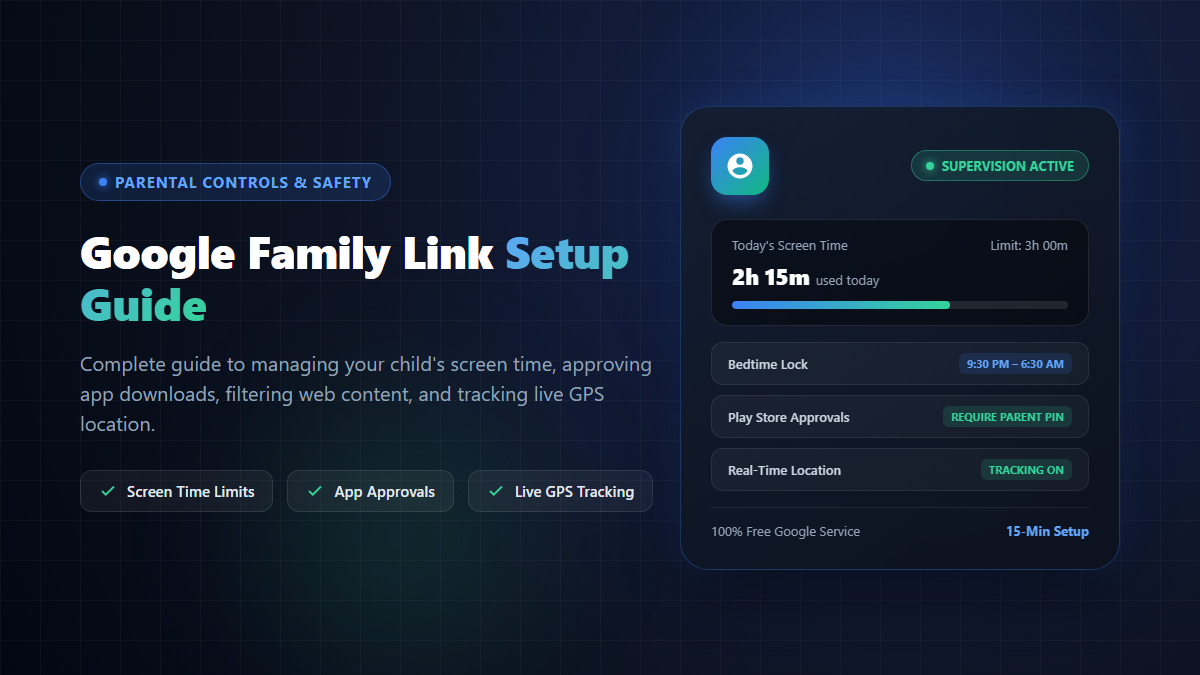
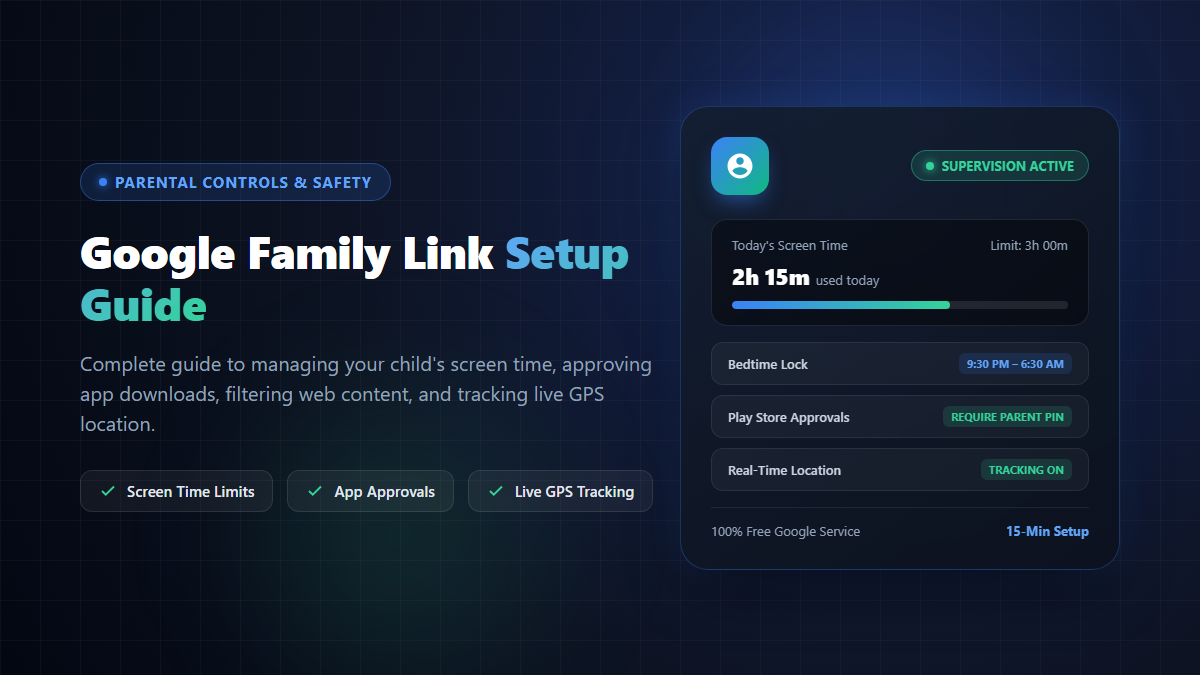
Google Family Link gives parents complete oversight over screen time, app downloads, and real-time location.
Quick Summary: What You Can Control With Family Link
Daily Screen Time Limits: Set maximum allowable device hours per day (e.g., 2 hours on weekdays, 3 hours on weekends), and schedule automatic nighttime device locking (Bedtime).
App Management & Approvals: Approve or deny new Google Play Store downloads and in-app purchases directly from your phone; block distracting apps with one tap.
Real-Time GPS Location: View your child's live physical location on Google Maps whenever their phone is powered on and connected to the internet.
Web & Content Filtering: Enforce Google SafeSearch, filter age-inappropriate apps and movies on Google Play, and block explicit websites in Google Chrome.
System Requirements Before You Begin
Before initiating the setup process, ensure both devices meet Google's official Family Link compatibility criteria:
Parent Account & Age: You need your own standard Google Account, and you must be at least 18 years of age.
Parent Device Compatibility: Running Android 6.0+ or iOS 16+ (Family Link runs smoothly on both Android phones and iPhones for parents).
Child Device Compatibility: The child's device must be an Android smartphone/tablet (Android 6.0 or newer) or a Chromebook (Chrome OS 71+). Important: Supervised child mode cannot run on an iPhone or iPad — Apple devices can only act as the parent viewer.
Regional Match: Both parent and child Google accounts must belong to the same country.
Physical Presence: Keep your child and their device next to you during setup, as Google requires on-screen parental consent verification.
Step-by-Step Setup Guide (Takes ~15 Minutes)
If your child is under 13 years old (the applicable digital consent age in most jurisdictions), you can create a dedicated supervised Google account directly inside the Family Link app. If your child already has an existing account, you can simply attach parental supervision to it.
Step 1: Install Family Link on the Parent Phone
Download the official Google Family Link app from the Google Play Store (for Android) or Apple App Store (for iPhone). Open the app and sign in with your primary adult Google account.
Step 2: Create or Link Your Child's Google Account
If your child is under 13 and does not have an account, tap Add child (+) inside the app. Enter their legal name, date of birth, and desired Gmail address. Family Link will automatically configure this as a supervised child account.
If your child already has an active Google account, select the option to link an existing account.
Step 3: Configure Supervision on the Child's Phone
Take your child's Android phone and open Settings.
Tap Google → select Parental controls (on Android 8.1 and higher, this is found under Digital Wellbeing & parental controls).
Tap Get started or Set up parental controls, and select the child's Google account.
Select your parent Google account as the supervisor. Enter your parent password to authorize the link.
Follow the on-screen prompts to confirm parental consent and finish pairing.
Once paired, you never need to physically touch your child's phone again — every rule, limit, and lock is handled remotely from your own device.
How to Access & Use Key Parental Controls
1. Setting Screen Time & Bedtime Schedules
In your Family Link app, tap your child's profile and scroll to the Screen time card:
Daily Limit: Toggle Daily Limit on and specify maximum hours. Tap Weekly schedule to set different time allowances for school days versus weekends.
Bedtime Lock: Define a bedtime schedule (e.g., 9:30 PM to 6:30 AM). During these hours, the child's phone automatically locks itself against gaming, browsing, and social apps, allowing only emergency phone calls.
Bonus Time: On special occasions or holidays, tap Bonus time to award an extra 30 or 60 minutes without dismantling your regular schedule.
2. Managing & Blocking Apps
Navigate to Screen time → App limits. Here, you will see a detailed breakdown of how many minutes your child spent on each app today and over the past 30 days:
To restrict excessive gaming, set an individual time limit on specific titles (e.g., maximum 45 minutes for Free Fire or Roblox).
To disable an inappropriate or distracting app entirely, select it and choose Block. The app icon will vanish or lock on the child's home screen within 5 minutes.
3. Tracking Real-Time Location
Tap the Location tab → tap Set up location → select your child's device and tap Turn on. As long as the phone has GPS enabled and network data access, you can see their precise physical coordinates directly on Google Maps, complete with device battery levels.
4. Filtering Web Content & Purchases
Under Settings → Content restrictions:
Google Play Store: Require parent approval before the child can download any new app (even free ones) or make in-app digital purchases. Set age ratings (e.g., PEGI 7, PEGI 12, or Teen).
Google Chrome: Choose between "Allow all sites", "Try to block explicit sites", or "Only allow approved sites" to create a safe browsing garden.
Google Search: Force SafeSearch mode to filter out sexually explicit imagery and search results.
Important Caveats Every Parent Should Know
Device Graduation at Age 13: When a child turns 13 (or local legal consent age), Google offers them the choice to manage their own account independently. If they choose to stop supervision, you receive an immediate alert and their phone temporarily locks for 24 hours. Under age 18, parental consent is required to end supervision.
In-App Purchase Approvals: Family Link's purchase approval prompt applies to transactions processed through Google Play Billing. It cannot oversee external payment websites opened inside third-party browsers.
Screen Limits Are Per Device: If your child owns both an Android smartphone and an Android tablet with a 2-hour daily limit, they will receive 2 hours on the phone and 2 hours on the tablet. Keep this in mind when allocating screen allowances.
Core System Apps Cannot Be Blocked: Critical operating system utilities (like Phone dialer, Google Play Services, and device settings) cannot be locked, ensuring phone functionality and emergency calls remain accessible.
Conclusion: Modern Parenting with Peace of Mind
In our connected world, keeping children completely isolated from digital technology is neither practical nor educational. What matters most is guiding them toward healthy digital habits, protecting them from predatory web spaces, and ensuring late-night sleep isn't disrupted by endless smartphone scrolling.
Google Family Link delivers enterprise-grade parental controls in a friendly, free, and intuitive package. Dedicate 15 minutes today to configure it — your children will enjoy technology safely, and you will enjoy genuine peace of mind.