
Leave a Review


I often hear people say with full confidence: "My password is super strong and complex, no one can ever crack it."
That statement is only half true. No matter how intricate or lengthy your password is, once it leaks in a corporate data breach or gets harvested through a deceptive phishing link, it loses its power immediately. A single careless click on a fake login page can hand your complex password directly to cybercriminals.
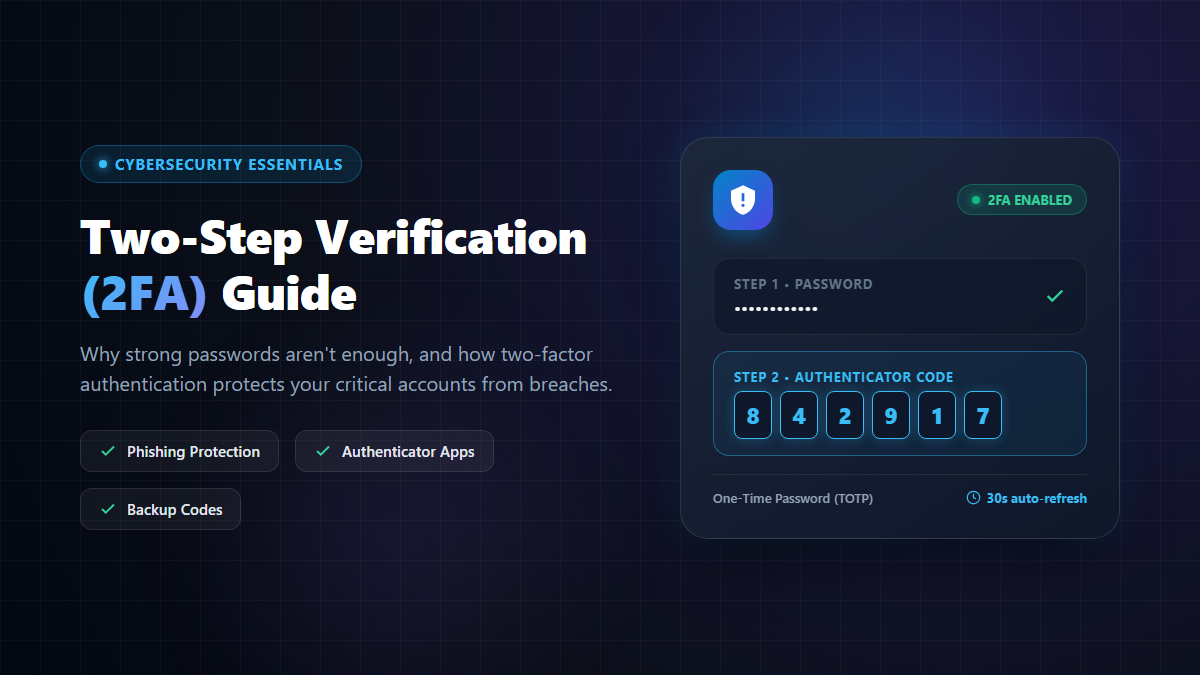
That is why true online security today relies on a vital second barrier — known as Two-Step Verification or Two-Factor Authentication (2FA).

The concept is simple yet powerful. To gain access to your account, you must present two separate proofs of identity:
Even if an attacker buys your password on the dark web or tricks you into entering it on a fake page, they cannot access your account without that second physical key. Without your device's code, the front door remains locked.
Trying to audit and lock down every single online service in a single day is exhausting. You will get frustrated and quit halfway. Instead, follow this structured priority order:
Your primary email address is the master key to your entire digital footprint. If someone breaches your main email, they can simply click "Forgot Password" on virtually every other service — your banking, social media, work tools, and shopping accounts — and take them over one by one. Protect this first.
Next, secure your financial channels: mobile banking apps, digital wallets (like bKash, Nagad, PayPal, Wise), and any platform linked directly to your debit or credit cards.
Cloud backup drives (Google Drive, iCloud, OneDrive, Dropbox) contain sensitive personal identity documents, private photos, and tax forms. Securing these prevents blackmail, data exposure, and identity theft.
Finally, secure your social networks (Facebook, Instagram, WhatsApp, Telegram, LinkedIn, X). Compromised social profiles are frequently used to impersonate you and scam your friends, colleagues, or family members.
While interfaces vary slightly across different apps and platforms, the setup process follows the exact same workflow on almost every website:
During the final setup stage, nearly every platform presents a set of 8 to 10 one-time emergency Backup Codes (or Recovery Codes). Unfortunately, many users close this window without paying attention.
This is a serious mistake. If your phone is lost, stolen, or damaged, or if your authenticator app accidentally gets deleted, these backup codes are your only emergency lifeline to regain account access without undergoing painful identity verification processes that can take weeks.
Many services default to sending an SMS verification code to your phone number. While convenient, SMS-based verification is vulnerable to SIM swapping attacks, where a scammer tricks your telecom provider into transferring your phone number to a new SIM card under their control.
Whenever an authenticator app option is available, use it instead of SMS. However, remember this rule of thumb: SMS-based two-factor authentication is still far better than having no second factor at all. If a platform only supports SMS, turn it on without hesitation.
Once you finish configuring 2-Step Verification on an account, perform this quick test immediately:
Taking two minutes to verify that the system works today will prevent unwanted surprises when you urgently need to access your account tomorrow.
Digital security is not an all-or-nothing marathon that you have to conquer in a single evening. Securing every account at once can quickly lead to fatigue.
Take it step by step over a week: protect your primary email on Monday, secure your banking on Tuesday, lock down your cloud storage on Wednesday, and finish your social profiles by the weekend. By turning on Two-Step Verification, you transform your accounts from easy targets into heavily fortified digital vaults.

Please login to live chat or contact via WhatsApp