


How to Turn Off Auto-Renew on PlayStation, Xbox, Nintendo, Apple, and Google Play (2026 Guide)
AroraShop Editorial & Fulfillment Team
Digital Gaming & FinTech Specialists (Dhaka, BD) • UpdatedHow to Turn Off Auto-Renew on PlayStation, Xbox, Nintendo, Apple, and Google Play (2026 Guide)
Plans like PS Plus, Game Pass, and Switch Online renew on their own. You have to turn auto-renew off. If you pay with gift cards, a renewal can use up money you saved for a game. Turning auto-renew off doesn't end your plan right away. You keep everything until the end of the time you paid for. This guide shows the steps for each one.
Why turn off auto-renew?
- Protect your balance. A renewal can take money you loaded for something else.
- No surprise charges. Free trials often turn into paid plans.
- Pay only when you play. Buy a month when a game you want comes out, then stop.
- Pick a new plan later. Prices change, so you may want a different one next time.
You lose nothing by turning it off early. Your plan still runs to its end date.
PlayStation (PS Plus and other subscriptions)
On PS5
- Open Settings, then Users and Accounts.
- Choose Account, then Payment and Subscriptions, then Subscriptions.
- Pick the subscription and choose Cancel Subscription.
For some services, go to Payment and Subscriptions, then Game and App Services, pick the service, and choose Turn Off Auto-Renewal.
On the web
- Sign in to PlayStation Account Management.
- Open Subscription.
- Choose Cancel under the plan.
Your plan stays active until the next payment date. If you change your mind, you can choose Reactivate Subscription before then. Our PS Plus tiers guide helps you pick a plan next time.
Xbox (Game Pass)
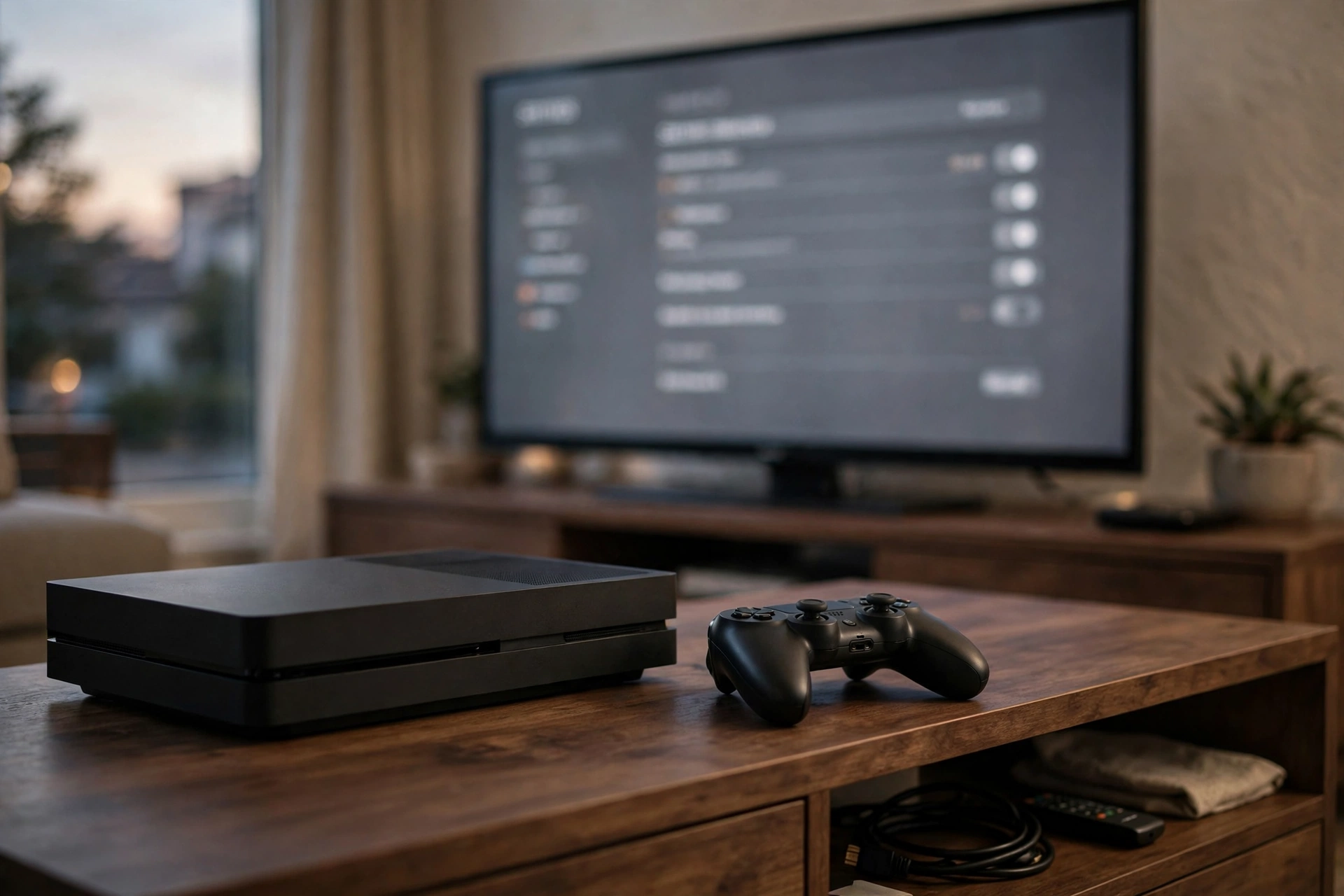
On Xbox Series X|S
- Press the Xbox button and open Profile & System.
- Choose Settings, then Account, then Subscriptions.
- Pick Game Pass and choose Turn off recurring billing.
On the web
- Go to account.microsoft.com and sign in.
- Open Services and Subscriptions.
- Find Game Pass, choose Manage, then Turn off recurring billing.
Game Pass stays active until the end of your paid time. Prices changed in 2026. Read about the Game Pass price cut before you buy again.
Nintendo Switch Online
On Switch or Switch 2
- Open Nintendo eShop and pick the account that bought the membership.
- Select your icon in the top-right corner.
- Choose Nintendo Switch Online on the left.
- Select the option to cancel by turning off automatic renewal.
On the web
- Sign in to your Nintendo Account at accounts.nintendo.com.
- Open Nintendo Switch Online.
- Under Active Plan, choose to turn off auto-renewal, then Confirm.
Two things to know. Nintendo asks you to do this at least 48 hours before the plan ends. Also, once it's off, you can't turn it back on. You just buy a new plan when you want one. Our Switch Online guide compares the plans.
Apple (iPhone and iPad)
- Open Settings and tap your name at the top.
- Tap Subscriptions.
- Pick the subscription, like Apple Music or iCloud+.
- Tap Cancel Subscription and confirm.
No cancel button? Then the plan is already set to end. Apple takes money from your balance first. So turn off plans you don't use.

Google Play (Android)
- Open the Play Store and tap your profile picture.
- Tap Payments & subscriptions, then Subscriptions.
- Pick the subscription.
- Tap Cancel subscription and follow the steps.
Deleting an app does not stop its plan. You must cancel it in the Play Store. For YouTube Premium, see our YouTube Premium cancel guide. For ChatGPT, see how to cancel ChatGPT.
Discord Nitro
- Open Discord and go to User Settings.
- Choose Subscriptions.
- Pick your Nitro plan and choose Cancel.
Your Nitro perks stay until the end of the paid time. Our Nitro Rewards guide shows what you get.
Quick table
| Platform | Where to go | Good to know |
|---|---|---|
| PS5 | Settings, Users and Accounts, Account, Payment and Subscriptions | Can reactivate before the end date |
| Xbox | Settings, Account, Subscriptions | Also at account.microsoft.com |
| Nintendo | eShop, your icon, Nintendo Switch Online | Do it 48 hours before the end |
| Apple | Settings, your name, Subscriptions | Balance is used first |
| Google Play | Play Store, profile, Payments & subscriptions | Deleting the app doesn't cancel |
A smart way to pay with gift cards
- Buy a card just before you need it.
- Turn off auto-renew right after you subscribe. You still get the full month.
- Set a phone reminder a few days before the end date.
- Check your plans once a month.
You can compare card prices in our gift card price list and app prices in the subscription price list.
What if you were already charged?
Check your account history first. It shows the date and the plan. If a renewal took money you didn't want to spend, contact that store's support quickly. Each store has its own rules, and some may help if you ask soon. Then turn off auto-renew so it doesn't happen again.
Frequently asked questions
If I turn off auto-renew, do I lose my plan right away?
No. You keep it until the end of the time you paid for.
Will I get a refund for the days left?
Usually not. Nintendo, for example, says there are no refunds for the time left. You just keep using it until it ends.
Can I turn auto-renew back on?
On PlayStation, you can reactivate before the end date. On Nintendo, you can't turn it back on. You buy a new plan instead.
Does deleting an app cancel the subscription?
No. On Android and iPhone, you must cancel in the store or settings.
How do I stop Game Pass from renewing?
On Xbox, go to Settings, Account, Subscriptions, pick Game Pass, and choose Turn off recurring billing.
When should I turn off Nintendo Switch Online renewal?
At least 48 hours before your membership ends.
Why should gift card users turn off auto-renew?
So a renewal doesn't use up balance you loaded for a game or something else.
Conclusion
Turning off auto-renew takes a minute and keeps your money where you want it. Do it right after you subscribe, enjoy the full month, and buy again only when you need it.
See all gift card prices on AroraShop and pay with bKash. Our live chat team answers in Bangla and English.
Sponsored
Categories
- Beginners Gamers 1
- Top Up 0
- Gift Card 3
- Announcement 0
- Technology 31
- Artificial intelligence 11
- Updates & Guides 276
- Games 3
- Business & Tech 1
- Freelancing & Career 2
- Tech Tips & Tutorials 1
- Make Money Online 1
- Tech & AI Tools 2
- Crypto & Airdrops 3
- Career & Business 1
- Money Making 2
- Guides 0
- Game Top-Up Guides 0
- Subscription Guides 1
Sponsored
Recent Posts


Sponsored