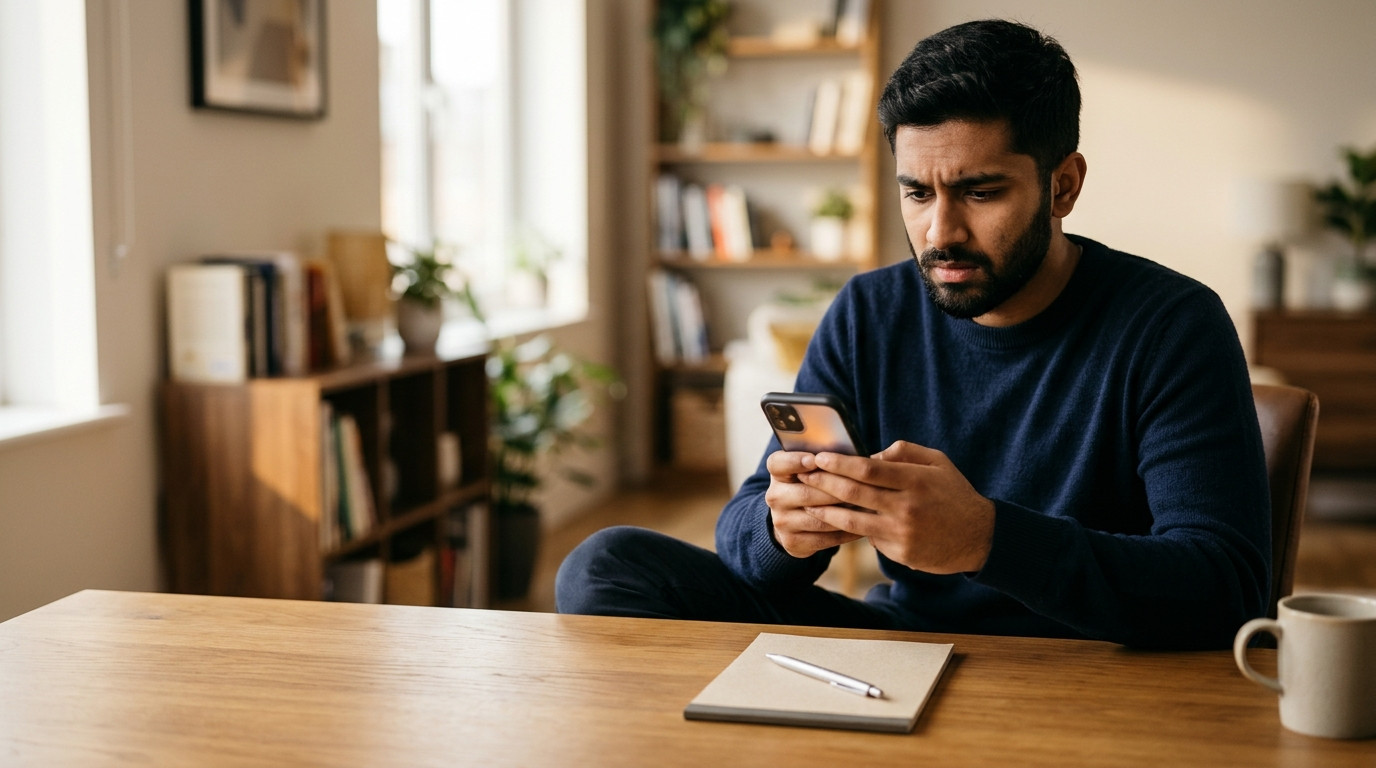
You paid. The confirmation came through. But your PUBG Mobile UC balance has not changed. You check the app again. Still nothing. This is one of the most common questions players ask in Bangladesh - and almost every case has a clear fix.
This guide covers every reason UC might not arrive, how to check your Player ID before you order, what proof to save, and how to contact support quickly. Read it once, and you will know exactly what to do next time.
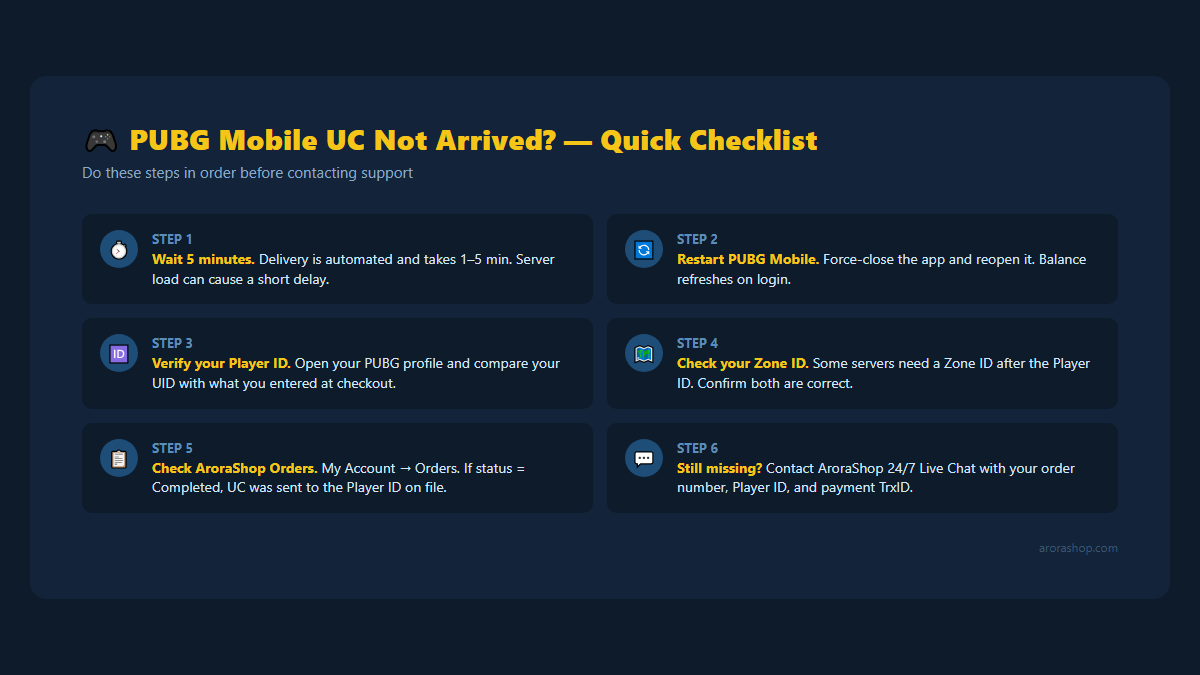
Quick Checklist - UC Not Arrived?
Before anything else, run through this list:
Wait 5 minutes. Most UC lands in 1-3 minutes. Server load can stretch it to 5.
Restart PUBG Mobile. Close the app fully and reopen it. The balance refreshes on login.
Check your Player ID. Open PUBG Mobile → tap your avatar → copy the number under your nickname. Compare it with what you entered at checkout.
Check Zone ID (if asked). Some servers require a Zone ID alongside your Player ID. Confirm you entered both correctly.
Check your order dashboard. Log in to AroraShop → go to My Account → Orders. If the order shows Completed, the UC was sent to the Player ID on file.
Save your payment TrxID. You will need this if you contact support.
Figure 1 - Run through the checklist before contacting support.
Why PUBG Mobile UC May Be Delayed
Payment Processing Delay
bKash, Nagad, and Rocket payments are near-instant, but network congestion or a slow bank link can hold the confirmation for a minute or two. If the AroraShop order page says Processing, the payment is still being confirmed. Wait 3-5 minutes before taking action.
Wrong Player ID or Zone ID Entered
This is the most common cause. PUBG Mobile Player IDs are long number strings - one wrong digit sends the UC to a different account. If your order shows Completed but your balance is unchanged, a wrong ID is the likely reason. This is why you must always copy-paste your ID from inside the game rather than typing it by hand.
Server-Side Processing
PUBG Mobile servers process top-up requests in batches during peak hours. A brief server queue is normal. If 15 minutes have passed and UC has still not arrived, it is time to check your Player ID and contact support.
PUBG Mobile App Cache
Sometimes the app shows a stale balance from before the top-up. Force-close PUBG Mobile, wait 10 seconds, and reopen it. The updated UC balance loads with the fresh session.
How to Find Your PUBG Mobile Player ID (Step by Step)
Your Player ID is the safest way to top up - no password is ever needed. Here is how to find it:
Open PUBG Mobile on your phone.
Tap your profile avatar in the top-left corner of the lobby.
Your nickname appears at the top. Your Player ID (a long number) appears directly below it.
Tap and hold the ID to copy it.
Paste it into the AroraShop top-up form. Do not type it manually.
If your server requires a Zone ID, it appears on the same screen, separated by a colon after the Player ID (for example: 1234567890:1234). Enter both parts exactly as shown.
Figure 2 - Your Player ID sits just below your nickname in the PUBG Mobile profile screen.
What to Do If You Entered the Wrong Player ID
If you made a mistake on the Player ID, act quickly:
Do not place a new order. A second order will not fix the first one.
Open your AroraShop order history (My Account → Orders) and copy your order number.
Share: your order number, the wrong Player ID you entered, your correct Player ID, and your payment TrxID.
The support team will check whether the UC was already sent to another account and advise on the next steps.
Speed matters here. The sooner you report it, the better the chance of a resolution. AroraShop support is available 24 hours a day, 7 days a week, in both Bengali and English.
Payment Went Through but No UC - What to Check
Your bKash or Nagad deducted money, but the UC did not arrive. Here is what to look at:
Check your AroraShop order status first. If it says Pending, the payment gateway has not confirmed the transaction yet. Wait and refresh.
If status says Failed, the payment gateway returned an error and your money was not charged. Check your mobile wallet balance - if it is the same as before, nothing was deducted. If money was deducted, your mobile wallet provider's auto-refund process usually returns it within 5-10 business days. See the bKash payment failed guide for details.
If status says Completed, the UC was dispatched to the Player ID on record. Open PUBG Mobile, restart the app, and check your balance. If it is still zero, the Player ID entered was likely incorrect - see the section above.
What Proof to Save After Every Payment
Keep these five things immediately after each top-up:
Order number - from AroraShop (My Account → Orders).
Your Player ID - screenshot the PUBG profile screen that shows it.
Payment TrxID - the transaction ID from your bKash, Nagad, or Rocket confirmation SMS or app notification.
Payment screenshot - a photo of the payment success screen from your wallet app.
Time of payment - note the exact time or check the SMS timestamp.
Store these in a phone album folder called "Game Top-Ups" so you can find them in seconds if there is ever a problem.
Figure 3 - Keep these five items after every top-up so support can resolve issues fast.
How and When to Contact AroraShop Support
If you have waited 15 minutes, restarted the app, and confirmed your Player ID is correct, it is time to contact support.
When to contact:
15+ minutes have passed and UC has not arrived.
Order status shows Completed but your PUBG balance is unchanged.
You entered the wrong Player ID.
Your bKash/Nagad was charged but order status shows Failed.
What to include in your message:
Your AroraShop order number
Your correct PUBG Mobile Player ID (and Zone ID if applicable)
Your payment TrxID
A screenshot of the payment confirmation
The exact UC package you ordered
Contact options:
24/7 Live Chat - the fastest option, available in Bengali and English on the AroraShop website.
Never share your PUBG Mobile account password with anyone - AroraShop's direct UID top-up system never needs it. See the Terms and Conditions for full policy details.
Avoid These Common Mistakes
Typing the Player ID manually. Always copy-paste from inside the game. One wrong digit sends UC to another account.
Closing the order page too fast. Wait for the order confirmation screen to load and save your order number before leaving.
Ordering twice without waiting. If UC is delayed, placing a second order will charge you twice. Wait 15 minutes, then contact support.
Sharing your account password. No legitimate top-up service needs your password. A direct UID top-up only needs your Player ID.
Using unofficial resellers. Unofficial channels have no dispute process. If something goes wrong, you have no way to recover your money. Use a verified platform with a support team.
Not saving proof. Screenshots take 2 seconds. Disputes without proof take much longer to resolve.
Frequently Asked Questions
How long does PUBG Mobile UC take to arrive after payment?
Most deliveries happen in 1-5 minutes. The system is automated, and 98.7% of orders complete within 3 minutes. If 15 minutes pass without UC, contact support.
My order status says Completed but I see no UC. Why?
The UC was sent to the Player ID on file. If your PUBG Mobile balance did not change, the Player ID entered at checkout was likely incorrect. Restart the app first, then compare the Player ID in your order with the one in your PUBG profile.
What is a Zone ID and do I need it?
The Zone ID is a short number shown after your Player ID in the PUBG Mobile profile screen (separated by a colon). Some regional servers require it. If the top-up form asks for it, enter both the Player ID and Zone ID exactly as they appear in your profile.
Can I get a refund if the UC went to the wrong account?
Contact AroraShop support immediately with your order number, the wrong Player ID, and your payment proof. The team will review the order and advise on options. Fast reporting improves the chances of a resolution. Review the Terms and Conditions for the refund policy.
Do I need to share my PUBG Mobile password to top up?
No. A direct UID top-up never requires your password, your account login, or your email. Any service that asks for your password is not legitimate.
My bKash was charged but the order failed. Will I get my money back?
If the payment gateway returned a failed status, your mobile wallet provider's auto-refund process returns the amount within 5-10 business days. Check the bKash payment failed guide for step-by-step help.
I placed two orders by mistake. What do I do?
Contact AroraShop Live Chat right away with both order numbers. Do not panic - the support team can check both orders and advise on next steps before the second top-up processes.
How do I track my PUBG UC order?
Log in to AroraShop and go to My Account → Orders. Each order shows its current status: Pending, Processing, Completed, or Failed.
Ready to Top Up Safely?
Now you know what to check, what to save, and what to do if anything goes wrong. Most issues come down to a wrong Player ID or a brief delivery delay - both are easy to catch if you know where to look.