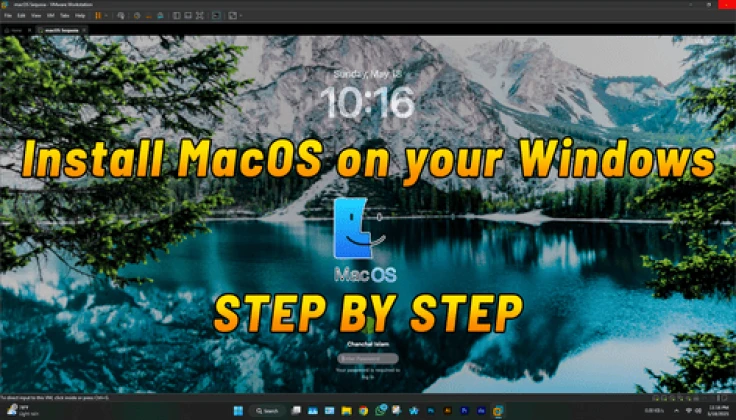



Use Apple MacOs with VMware for Windows Step by Step
18 Sep 2025 โ€ข 2 min read โ€ข
Share:

Use Apple MacOs with VMware for Windows Step by Step

A
AroraShop
Content Writer

ssalamu Alaikum TrickBD Family!
Hope youโ€™re doing great!
Tired of Windows? Try macOS now! ๐ŸŽ

macOS is Appleโ€™s system.
It runs on MacBooks.
Itโ€™s smooth, fast, and safe.

Apple builds both the computer and the system.
Thatโ€™s why it works so well.

If you put macOS on a non-Mac, itโ€™s called a Hackintosh.

Weโ€™ll install macOS with VMware.
It may be a little slow.
Some fun effects like blur wonโ€™t work unless we tweak it.

Want blur or animations?
Tell me in the comments!


๐Ÿ”ง What You Need:


๐Ÿ”“ Easy Steps:

  1. Open Unlocker folder
  2. Right-click win-install.cmd > Run as Admin
  3. Open VMware
  4. Click Create New VM
  5. Choose Typical > Next
  6. Choose Install OS later > Next
  7. Pick macOS 15 > Next
  8. Give it a name > Next
  9. Set disk to 100GB (min 80GB)
  10. Choose Store as one file > Next
  11. Click Customize Hardware
  12. Set RAM based on your PC
  13. Use 1 processor, 4 or 8 cores
  14. Go to CD/DVD > pick macOS ISO
  15. Go to Hard Disk > Add disk
  16. Pick matching OpenCore (4 or 8)
  17. Click Finish > Keep format > OK
  18. Set OpenCore to Disk 1, your disk to Disk 2

๐Ÿ’ป Letโ€™s Install macOS:

  1. Power on the machine
  2. Click Install macOS 15 Beta
  3. Pick English > Next
  4. Go to Disk Utility
  5. Select 100GB disk > Erase
  6. Name it > Erase
  7. Close > Click Install macOS 15 Beta
  8. Click Agree > Continue
  9. It may reboot. Just restart and continue.

๐Ÿ›  Final Steps:

  1. Close VMware
  2. Open VM settings
  3. Go to CD/DVD > Choose darwin.iso
  4. Boot macOS
  5. Click VMware Tools
  6. Click Install VMware Tools
  7. If asked, click Allow
  8. If it fails:
    • Go to Settings > Security > Allow
  9. Restart VMware

๐ŸŽ‰ Thatโ€™s It!

macOS is ready!
Want iCloud or cool effects?