



Leave a Review
How to Use Windows Sandbox to Safely Test Suspicious Files and Software
27 Oct 2026 • 6 min read • 48 views •
Share:

How to Use Windows Sandbox to Safely Test Suspicious Files and Software

A
AroraShop
Content Writer

How to Use Windows Sandbox to Safely Test Suspicious Files and Software

You download a software utility, patch, or game mod from an unfamiliar internet forum, but right before double-clicking the installer, a nagging thought stops you: What if this executable is bundled with spyware, ransomware, or a hidden crypto-miner?

Executing untrusted files directly on your primary workstation or personal gaming PC is a massive security gamble. Fortunately, modern Windows includes an exceptional, built-in protective feature designed specifically for this dilemma: Windows Sandbox.

Windows Sandbox provides a lightweight, fully isolated virtual desktop environment where you can execute questionable files, test unverified software, or browse suspicious URLs with zero risk. The moment you close the sandbox window, every single file, registry modification, and malware payload inside vanishes forever without leaving a single trace on your host machine.

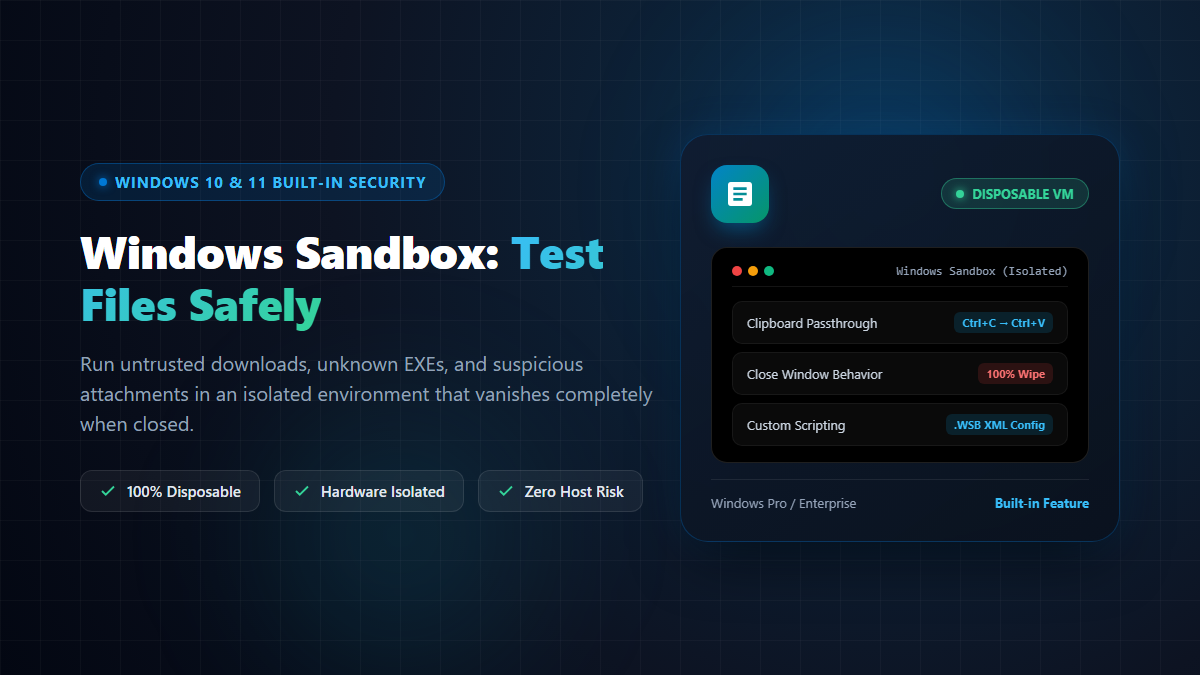
Windows Sandbox safe file testing guide banner
Windows Sandbox creates a lightweight, disposable virtual Windows environment that protects your physical PC from malware.

Quick Summary: Key Architectural Advantages

  • Native Built-In Feature: No need to download heavy third-party virtualization software (like VirtualBox or VMware) or acquire secondary Windows license keys — it comes pre-integrated in Windows Pro, Enterprise, and Education editions.
  • Pristine State Every Launch: Every time you launch Windows Sandbox, it boots as clean and fresh as a brand-new installation of Windows.
  • 100% Disposable: The instant you click the red "X" to close the window, all installed software, temporary downloads, and system changes are instantly incinerated.
  • Hardware-Based Virtualization: It runs on an independent, isolated kernel using Microsoft's hypervisor, preventing malicious processes from escaping into your primary operating system.
  • Fast & Resource Efficient: Launches in under 10 seconds and dynamically shares system memory, demanding far fewer resources than conventional virtual machines.

System Prerequisites Before Enabling

Ensure your hardware and operating system edition meet Microsoft's official requirements:

  1. Windows Edition: Windows 10 (version 1903 or newer) or Windows 11. Crucial Note: Windows Sandbox is not available on Windows Home edition.
  2. CPU Virtualization: Hardware virtualization (Intel VT-x or AMD-V/SVM) must be enabled in your computer's BIOS/UEFI settings (enabled by default on virtually all modern motherboards).
  3. Hardware Specs: Minimum 4 GB of RAM (8 GB strongly recommended), at least 1 GB of free disk space (SSD strongly recommended), and a modern 2-core 64-bit CPU (4 cores recommended).

How to Enable Windows Sandbox in 3 Easy Steps

Method 1: Via the Windows Graphical Interface

  1. Press the Windows Key, type Turn Windows features on or off in the search bar, and hit Enter.
  2. In the pop-up window, scroll through the alphabetical feature list, locate Windows Sandbox, and check its box.
  3. Click OK. Windows will automatically fetch and configure the required binaries.
  4. Restart your PC when prompted.

Troubleshooting tip: If the "Windows Sandbox" option is grayed out or missing from the list, your PC is either running Windows Home edition or CPU virtualization is disabled in your BIOS.

Method 2: Via PowerShell (Fastest Method)

Right-click the Start button, select Terminal (Admin) or PowerShell (Run as Administrator), and paste the following command:

Enable-WindowsOptionalFeature -FeatureName "Containers-DisposableClientVM" -All -Online

Once execution finishes, press Y to reboot your system.

How to Use Windows Sandbox: A Step-by-Step Workflow

1. Launching the Sandbox

Open your Start menu, search for Windows Sandbox, and launch it. Within seconds, a clean, responsive desktop window displaying a fresh Windows installation will open.

2. Moving Suspicious Files Inside

By default, Windows Sandbox shares the clipboard with your host system:

  • On your physical host computer, select the suspicious installer or attachment and press Ctrl + C (Copy).
  • Click inside the Windows Sandbox desktop window and press Ctrl + V (Paste).
  • The file will instantly appear on the Sandbox desktop ready for inspection.

3. Testing & Executing the Program

Double-click the file to install it, run diagnostics, browse the web, or monitor its background behavior. Even if the executable attempts to inject a trojan, encrypt files, or edit Windows boot records, all damage is trapped exclusively inside the disposable container.

4. Closing & Incinerating the Sandbox

When you finish testing, simply click the X button in the top-right corner of the Sandbox window. Windows will display a prompt confirming that all sandbox contents will be permanently discarded. Click OK, and the entire virtual session — along with any malicious code — is immediately erased from existence.

Advanced Tip: Customizing with .wsb Configuration Files

Power users can create specialized XML-based configuration files (with a .wsb extension) to launch Sandbox with specific security constraints, such as disabling internet connectivity or mounting host folders safely in read-only mode.

Example: Safe Offline Sandbox Configuration

Open Notepad, paste the following XML structure, and save it as SafeTest.wsb on your desktop:

<Configuration>
  <Networking>Disable</Networking>
  <MemoryInMB>4096</MemoryInMB>
  <MappedFolders>
    <MappedFolder>
      <HostFolder>C:\TestFiles</HostFolder>
      <ReadOnly>true</ReadOnly>
    </MappedFolder>
  </MappedFolders>
</Configuration>

Double-clicking this .wsb file boots a Sandbox instance with:

  • Networking Disabled: Prevents aggressive malware from communicating with remote Command & Control (C2) servers or spreading across your local Wi-Fi.
  • Dedicated 4 GB RAM Allocation: Guarantees smooth execution for heavier benchmarking.
  • Read-Only Folder Mapping: Allows you to view test files stored in C:\TestFiles on your host PC while strictly barring the sandbox from modifying or infecting those original files.

Important Realities & Limitations

  • Single Concurrent Instance: You can only run one active Sandbox window at any given time.
  • Host Software Is Not Mirrored: Programs installed on your main machine (like Office or specialized IDEs) do not appear inside Sandbox; each session requires on-the-fly installations.
  • Windows 11 In-Session Restarts: Starting with Windows 11 version 22H2, if an installer requests a system reboot, choosing "Restart" inside Sandbox preserves session state without wiping the VM.
  • Store App Availability (Windows 11 24H2): In recent Windows 11 24H2 builds, certain built-in Store apps (like Notepad or Calculator) may initially be absent from Sandbox as Microsoft transitions to decoupled package architecture.

Conclusion: An Indispensable Defensive Tool

Whether you frequently download open-source utilities, inspect questionable email attachments, or experiment with unverified scripts, Windows Sandbox provides unmatched peace of mind.

Take five minutes to enable it today. Once configured, you will never have to gamble your physical workstation's health on a suspicious download again.

Support
Customer Support
We typically reply in minutes

Please login to live chat or contact via WhatsApp
Open WhatsApp Chat on WhatsApp
OR