
Leave a Review


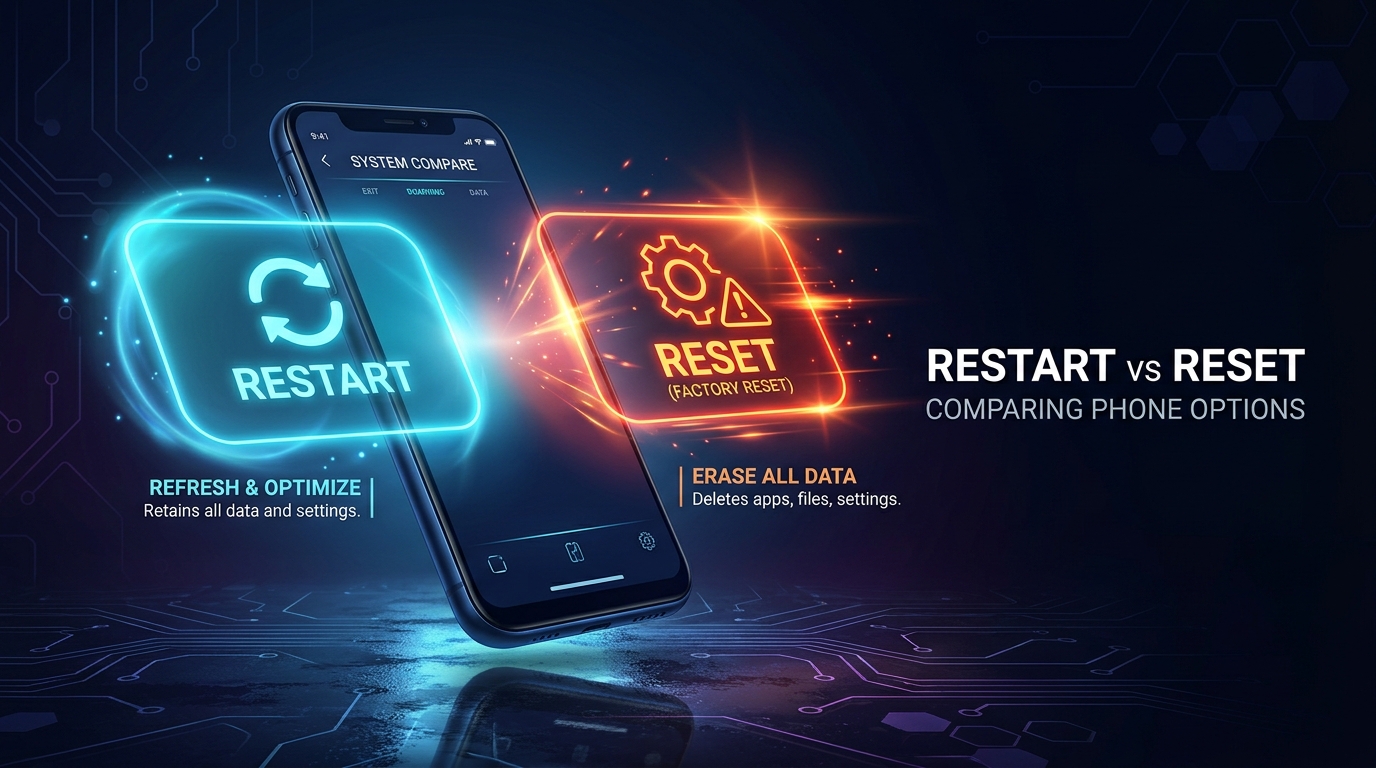
At first, I used to get these two terms confused too. Restart and reset sound similar, but they work very differently. If you press the wrong button, you could lose your photos, messages, and other important data. So, today, let’s explain the difference in simple words.
Restart means turning your phone off and starting it again. You can usually do this by pressing and holding the power button and selecting Restart.
Restarting your phone does not delete your personal data. Your photos, apps, and settings will remain as they were. It simply closes running processes and starts the phone again.
If your phone feels slow, an app gets stuck, or your internet connection is not working properly, restarting your phone is a good first step.
Restarting your phone once a week can be a useful habit. I personally do it on Sunday mornings.
Sometimes your phone freezes, and the screen does not respond at all. In that situation, a force restart can help.
On many Android phones, pressing and holding the Power and Volume Down buttons together for 10–15 seconds forces the phone to restart. However, the button combination may vary depending on your phone model.
A force restart normally does not erase your personal data either.
This is where you need to be careful. There are two common types of reset.
The Reset Settings option restores certain settings to their default values.
For example, it may remove saved Wi-Fi passwords and Bluetooth pairings, depending on your phone and the reset option you choose.
Your personal photos and apps generally remain on the phone.
A factory reset returns your phone to its initial setup state, similar to when you first bought it.
It removes personal data stored on the phone, including:
A factory reset can permanently erase your personal data. Always make sure you have a backup before proceeding.
A factory reset may be useful in the following situations:
Before performing a factory reset, back up your important data. Check that your photos and contacts are safely backed up to your Google account or another secure location.
On many Android phones, the steps are usually:
Settings → System → Reset options → Erase all data
On Samsung phones, the option is generally under:
Settings → General management → Reset → Factory data reset
The exact menu names may differ depending on your phone model and Android version.
Remember this simple rule: if the problem is minor, try restarting first. If the problem is serious and other solutions have failed, consider a reset.
And before tapping the factory reset button, ask yourself one important question:
Have I backed up my important data?