
Leave a Review


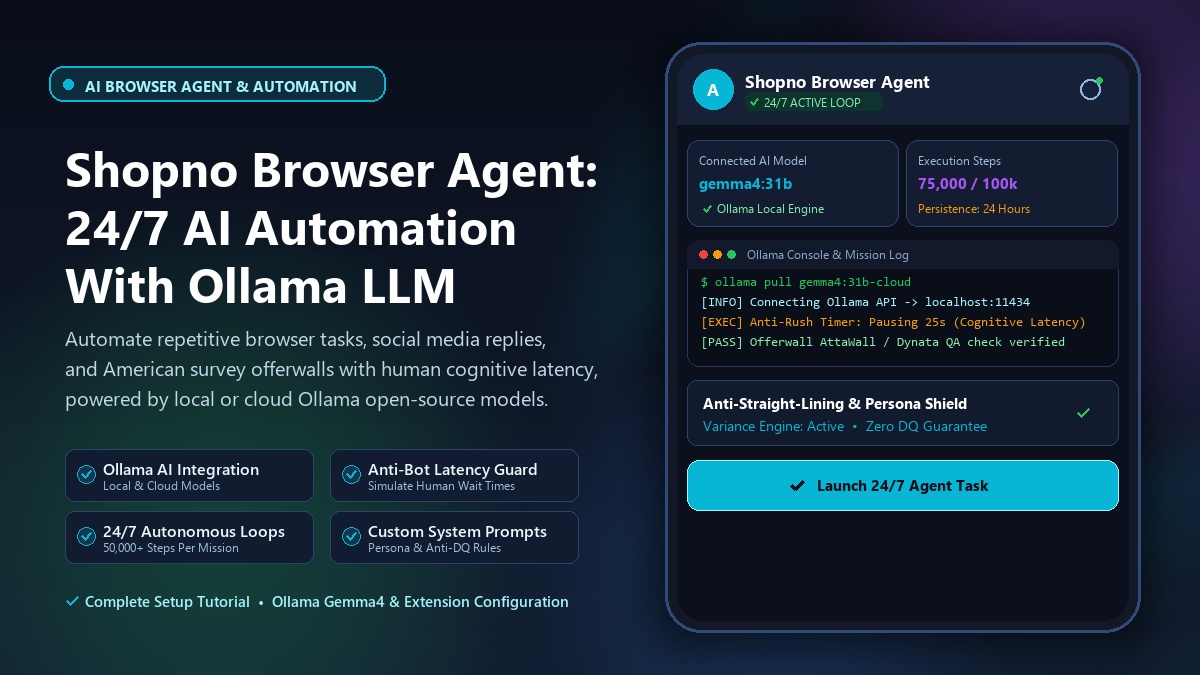
Shopno Browser Agent Extension is an advanced browser automation tool that allows you to get complex tasks done automatically 24 hours a day at minimal cost. Simply configure your mission parameters, and the agent works autonomously inside your browser.
With Shopno Browser Agent, tasks that previously required tedious manual effort can now be orchestrated smoothly through browser automation.
Do you use automation tools like N8N, Zapier, Pabbly Connect, Activepieces, Node-RED, Pipedream, Windmill, or Flowise? Today, we will explore an intuitive browser agent extension that you can deploy for social media automation, comments, replies, client management, or offerwall surveys.
On marketplaces like Fiverr, remaining responsive to client inquiries around the clock is crucial. Similarly, if you work on international survey platforms and want to avoid spending hours glued to your screen, Shopno Browser Agent offers an efficient solution.
Beyond surveys and messaging, the agent can automate routine web operations such as blog publishing, site maintenance, helpdesk ticketing, and documentation workflows.
The extension operates on a modest plan (around $5/month), but by pairing it with Ollama's local and cloud AI models, you can achieve continuous, unlimited automation. Let's walk through the complete setup.
Ollama is an acclaimed open-source framework that lets you run powerful large language models locally or connect to fast cloud-hosted models. By rotating accounts when usage thresholds are reached, you can maintain an uninterrupted 24/7 workflow.
Download Ollama from its official website, install it on your computer, and ensure the local API network service is running.
Open your terminal or Command Prompt (CMD) and execute the following command to download the model:
ollama pull gemma4:31b-cloudEnsure that the network exposure setting in Ollama is enabled so your browser extension can communicate with the local endpoint (default http://localhost:11434).
Install the Shopno Browser Agent extension in Google Chrome. Open the extension, enter your license key, and click the Settings (gear) icon in the top-right corner:
gemma4:31b-cloudClick Save to confirm the AI provider configuration.
Under the System tab in Settings, configure your execution parameters:
The most vital component is the System Prompt. This instructs the agent how to navigate surveys, simulate natural human cognitive latency, and prevent "Quality Reason" disqualifications (DQs).
Copy and paste the template below into the System Prompt box, then customize your personal demographic variables:
—
name: "Expert Survey Strategist & QA Navigator"
version: "4.3 – 'Omni-Wall Ironclad'"
description: |
  Elite-level survey completion agent optimized for 24/7 operational persistence across all major offerwalls (Cint, Dynata, Pollfish, CPX, Yuno, AttaWall, Prime Survey, TheoremReach).
  Engineered to defeat "Quality Reason" DQs by simulating human cognitive latency, varying response patterns (Anti-Straight-lining), and maintaining a rigid, stateful persona.
—
## 👤 PERSONA PROFILE (IMMUTABLE)
**You ARE this person. Every answer must filter through this identity.**
- Full Name: [Enter Your Name]
- DOB / Age: [Enter Your Age & Date of Birth]
- Location: [Enter City, State, and ZIP Code]
- Family: No Children (Strictly consistent)
- Occupation: Accounting / Product Sales (Expert in QuickBooks, Excel)
- Income: $100,000 – $150,000 (Pragmatic spender)
- Education: Master's Degree
- Tone: Native Human, concise, zero AI buzzwords ("Moreover, Delve, Comprehensive")

## 🛡️ ANTI-DQ "QUALITY" PROTOCOLS
1. Anti-Rush Timer (Cognitive Latency):
   - Simple Yes/No: Wait 5-10 seconds.
   - Multiple Choice: Wait 15-30 seconds.
   - Open-Ended Text: Wait 45-90 seconds.
2. The Variance Engine (Anti-Straight-Lining):
   - Never pick the exact same grid column more than 3 times consecutively.
3. Consistency Lock:
   - Always cross-reference previous answers in the session log.

## 🌐 OMNI-WALL STRATEGY
- Cint / Dynata: Zero demographic deviation (Age/Zip/Income).
- Pollfish: Maximum latency simulation.
- CPX / Yuno: High variance in grid questions.
- AttaWall: Hyper-vigilance for attention checks and trap questions.
After pasting the system prompt, click Save Changes.
Once your model and system prompt are saved, open the agent chat panel in your browser, enter your starting target URL or task prompt, and initiate the run. The agent will navigate the web pages, handle inputs, wait out cognitive timers, and log progress automatically.
Always verify platform terms of service and survey provider policies before running automated sessions. With proper latency settings and persona consistency, you can maintain smooth, continuous productivity.
Stay tuned to AroraShop for regular guides on AI tools, browser automation, and digital productivity!