
Leave a Review


You signed up for ChatGPT Plus, and now you want out. Maybe the $20 a month no longer fits your budget, or you only needed it for one project. Either way, ChatGPT subscription cancel steps depend on where you originally subscribed, and that is where most people get stuck.
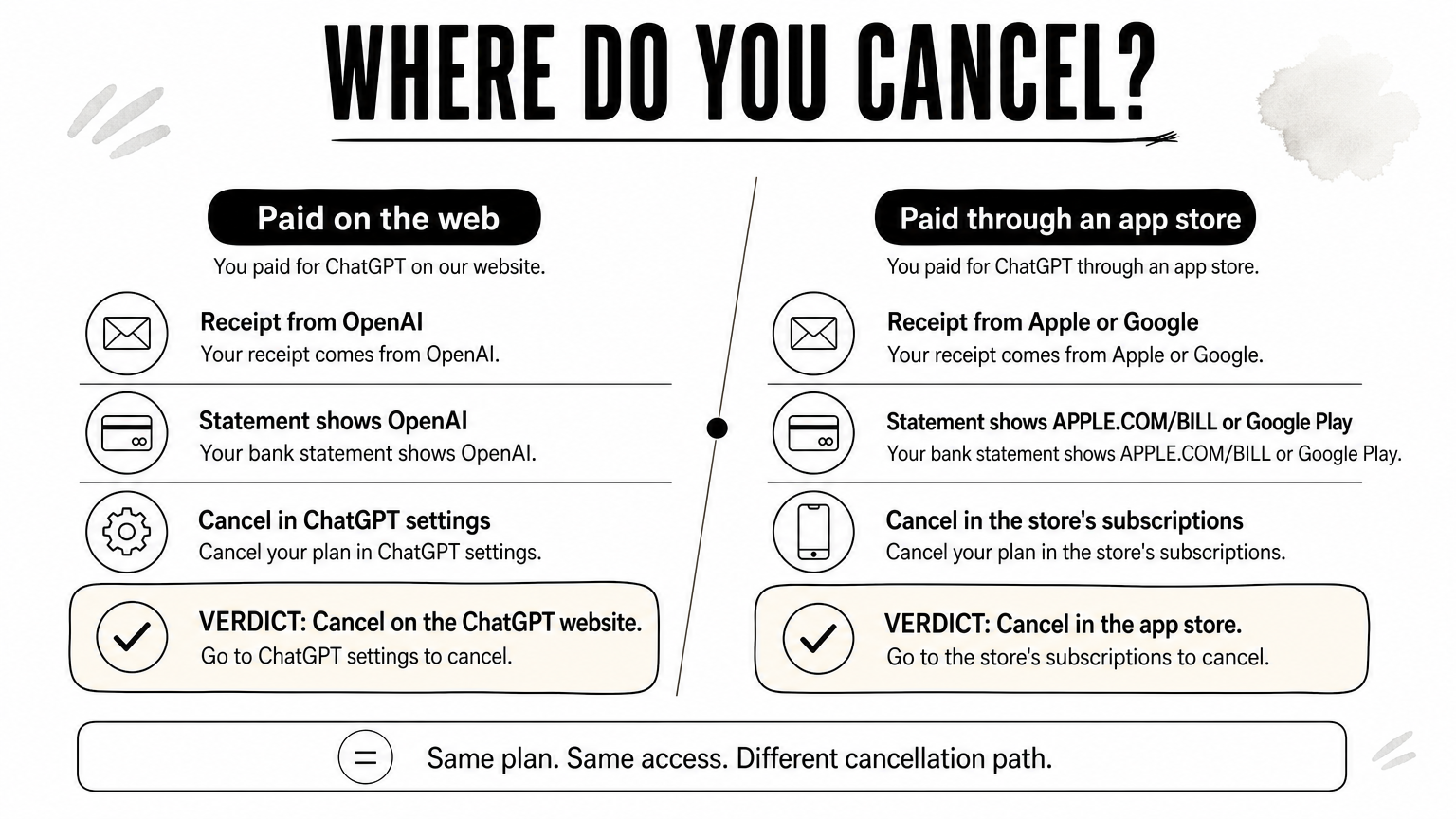
Here is the short answer. Cancel on the same platform where you paid. If you subscribed on the web, cancel in ChatGPT settings under Manage subscription. If you subscribed through the App Store or Google Play, you must cancel there, not in ChatGPT. Cancelling stops the next renewal, and you keep Plus until the billing period ends. Refunds are generally not given for a partial month.
Below, you get clear steps for web, iOS, and Android, plus how to confirm the cancellation worked and what happens to your chats and settings afterward. We also cover what to do if you bought Plus through a local seller like AroraShop with bKash, Nagad, or Rocket, since that changes how renewal works.
Cancelling in the wrong place is the most common mistake, and it usually costs people another month of billing. Each platform bills you separately, and none of them can cancel a subscription held by another. ChatGPT's settings cannot stop an Apple charge, and Apple cannot stop a charge made on the web. Spend two minutes finding out who actually bills you before you tap anything.
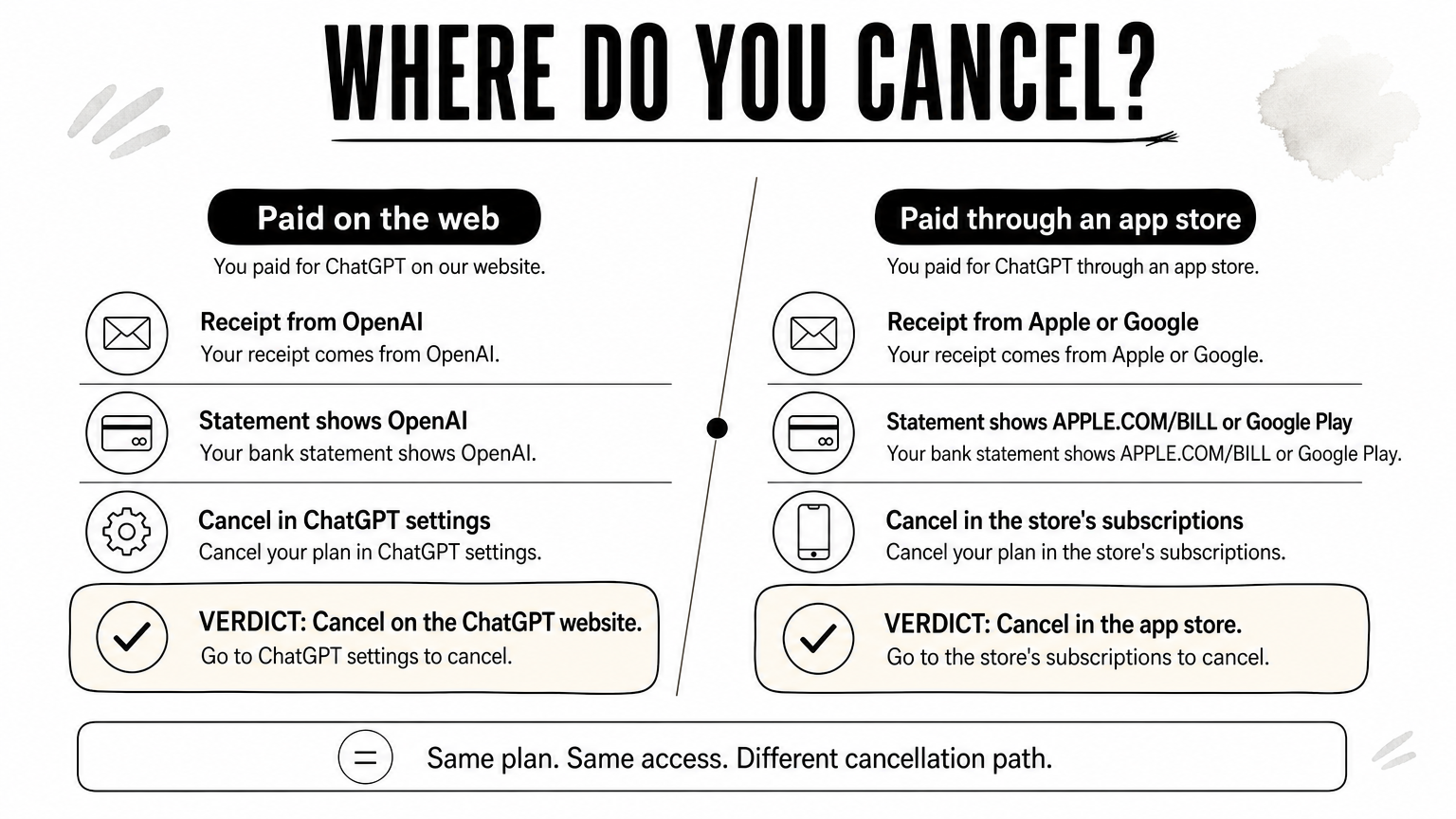
You can only cancel a subscription in the place that bills you.
Start with your email. Search your inbox for "receipt" plus "ChatGPT" or "OpenAI", then look at the sender of the latest one. That sender tells you where to cancel.
Receipt comes from Bank or card statement shows Where you cancel OpenAI OpenAI or ChatGPT ChatGPT website (Step 1) Apple APPLE.COM/BILL iPhone or iPad settings (Step 2) Google Play Google Play Google Play Store (Step 3) A seller, not OpenAI A bKash, Nagad, or Rocket payment to the seller The seller (see below)Your card or mobile wallet history works too. Match the most recent charge to the table above. If you pay with a virtual card, check which service name appears in the charge.
If you can't find a receipt, ask the app itself. Log in on the web and run through this short check:
This check is quick, but receipts are more reliable. Use both if the answer still feels unclear.
Many buyers in Bangladesh don't hold an international card, so they buy ChatGPT Plus from a reseller and pay with bKash, Nagad, or Rocket. In that case, OpenAI may never see a card from you. Your receipt comes from the seller, and the seller controls whether anything renews. Open your order history on the seller's site and read the plan details. Look for the plan length and whether the product is a one-time purchase or a recurring one.
So how to cancel ChatGPT Plus subscription in this case depends on the seller, not on the steps below. Message their support before the renewal date and keep your order number ready. If you bought from AroraShop, message the AroraShop support team with your order details and ask whether your plan renews and how to stop it. Once you know your billing source, pick the matching step below.
Use this route if your receipt came from OpenAI. It takes about a minute, and it works from a laptop or a phone browser. This is the standard ChatGPT subscription cancel path, and it applies only to plans billed directly by OpenAI.
First, check the email address shown in your profile menu. People with two accounts often cancel the free one and keep paying on the other. Once you are in the right account, follow these steps:
If the Manage button is missing, stop here. Your plan is probably billed through Apple or Google, so jump to Step 2 or Step 3.
The billing page is hosted by OpenAI's payment processor, so it looks different from ChatGPT. That is normal. After you confirm, you should see a message saying your plan will be canceled on a specific date. Write that date down. It is the last day you keep Plus features such as higher message limits and access to the latest models.
Cancelling stops the next charge, but Plus access continues until the date on the screen.
Nothing is deleted when that date arrives. Your account drops back to the free plan, and your chat history stays where it was.
Now the refund question. Cancelling does not return money for the current period, and OpenAI's policy is that subscription fees are generally non-refundable. If you were charged by mistake or after you already cancelled, contact OpenAI support through the chat widget at help.openai.com and include your receipt. Keep the cancellation email as proof of the date you acted.
If your receipt came from Apple, Apple controls the subscription, and ChatGPT has no cancel button for it. This is how to cancel ChatGPT Plus subscription charges made through the App Store. It takes under a minute on an iPhone or iPad.
Prefer the App Store? Tap your profile picture in the top right corner, then tap Subscriptions. You get the same list. Once you cancel, the screen shows an expiry date instead of a renewal date. Note it down, because Plus stays active until that day.
The Subscriptions list only shows plans tied to the Apple ID signed in on that device. If ChatGPT is missing, you most likely paid with a different Apple ID, such as an old one or a family member's. The Apple receipt email names the ID that was charged. Sign in with it, or ask its owner to cancel.
One trap catches many people. Deleting the ChatGPT app does nothing to the billing.
Deleting the app does not cancel the subscription, so Apple keeps charging you.
OpenAI cannot refund an Apple charge, because Apple collected the money. You can still ask Apple directly at reportaproblem.apple.com. Sign in, choose I'd like to request a refund, select the ChatGPT charge, and give a short reason. Apple reviews each request and decides, so approval is not guaranteed. Ask soon after the charge, since older requests are harder to get through.
If you cancelled but still got billed, check that the cancellation went through under the same Apple ID. Then move on to Step 4 to confirm the status.
If your receipt came from Google Play, Google handles the billing, so the cancel button lives in the Play Store and not in ChatGPT. This is the Android version of a ChatGPT subscription cancel, and it takes about a minute.
No phone nearby? Open play.google.com/store/account/subscriptions in any browser and sign in. You see the same list and the same cancel button.
Many Android phones hold two or three Google accounts. If ChatGPT does not show up under Subscriptions, you probably paid with another account. Tap your profile icon in the Play Store, switch accounts, and look again. The Google Play receipt email is addressed to the account that was charged, so use it as your guide.
If ChatGPT is missing from your Subscriptions list, you are signed in to the wrong Google account.
After you cancel, the entry shows an end date instead of a renewal date. Note that date, because Plus keeps working until then.
Google collected the money, so OpenAI cannot refund it directly. Google is most flexible when you ask within 48 hours of the charge, and you can start a request through Google Play's refund help page. Approval is not guaranteed.
Past that window, Google may send you back to the app developer. In that case, contact OpenAI support with your Google Play receipt and the date you cancelled. Once you are done here, move on to Step 4 to confirm the cancellation actually registered.
A cancellation only counts if the platform shows it. Spend one minute checking, because a missed confirmation tap is the most common reason people get billed again. Every ChatGPT subscription cancel should leave a visible trace.
If you still see a renewal date, the cancellation did not go through. Repeat the steps for your platform and watch for the final confirmation screen. Take a screenshot of the result and save the confirmation email. You will want both if a billing dispute comes up.
Until that date, nothing changes. You keep every Plus feature, so there is no reason to rush and use it all up. On the end date, your account moves to the free plan. You can log in with the same email, and your past conversations stay put.
Cancelling removes the next charge and nothing else, and your account stays exactly as it is.
Changed your mind later? You can subscribe again from the same screen at any time. You do not need a new account.
Check the date first. A charge on or before the end date shown on your screen is the last bill for the period you already used, so it is expected. A charge after that date is a problem.
Gather your receipt, your screenshot, and the cancellation email. Then contact the platform that billed you. That means OpenAI support for web payments, Apple for App Store charges, and Google Play for Play Store charges. Asking the wrong company wastes days, which is why Step 1 matters so much.
Every ChatGPT subscription cancel comes down to one rule: cancel where you pay. Check your receipt, follow the web, Apple, or Google Play steps that match it, and confirm you see an end date instead of a renewal date. Do it at least a day before renewal, because a late cancellation means another month of billing.
Remember what you keep. Plus runs until the end date, and your account and chat history stay put afterward. Refunds are rare, so don't plan around getting one. Save your screenshot and confirmation email until a clean statement arrives.
Should you want Plus back later, you can resubscribe whenever you like. If you don't have an international card, you can buy a ChatGPT Plus subscription with bKash, Nagad, or Rocket at AroraShop and skip the card problem entirely.