
Leave a Review


In modern times, many people require multiple social media accounts—be it for work, marketing, or testing purposes. As a solution to this problem, I have created a Terminal Tool, through which multiple accounts can be created very easily, both automatically and manually.
In this article, I will show step by step how to get the job done using this tool.
This is my Part 1 post. In Part 2, I will show how to create accounts automatically, and in this first post, I will show how to manually create 4 Instagram accounts with a single Gmail or Outlook.
So let's get started without further talk and come to business. First, open the Instagram app.
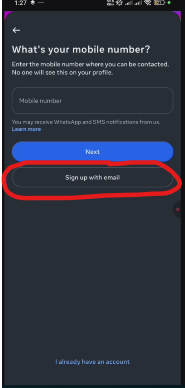
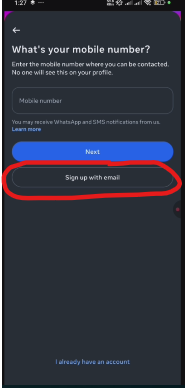
Click on Sign up with email.
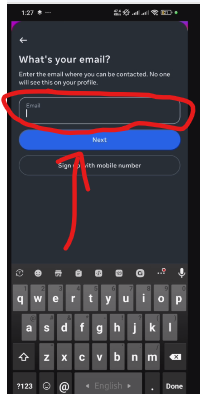
Then enter your Outlook mail here and click on the Next button.
Here I want to say one thing: perhaps many people already know how to create an account; those who know do not need to watch. For those who cannot, I am showing hands-on right from the beginning.
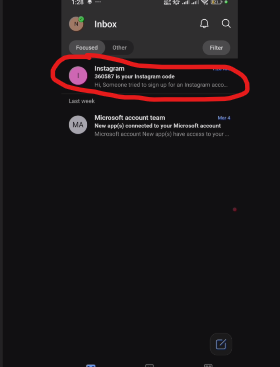
Now check your Outlook inbox, you will see Instagram has sent a four-digit confirmation code. Copy that code.
After entering the code, the password option will appear. Set a password of your choice, and then enter your date of birth.
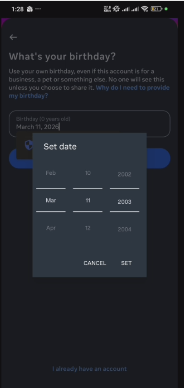
Next, it will look like the screenshot below, where you will provide your full name.
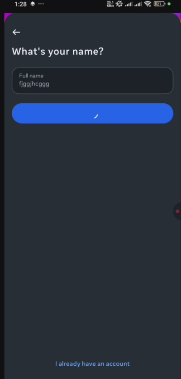
After that, click on the Next button and enter a username.
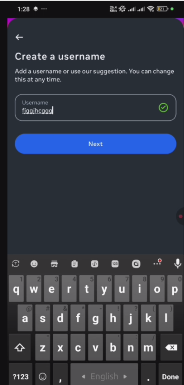
Now click on the Next button.
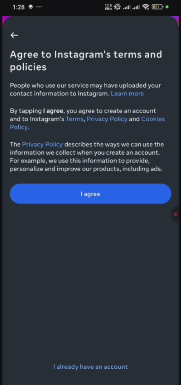
Now if everything looks fine, click on I Agree.
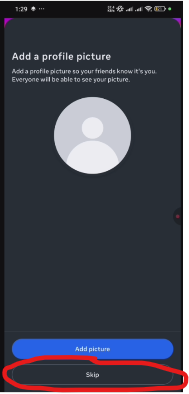
Then keep skipping and clicking next to get inside until you reach the profile page.
And copy the username and save it in a sheet.
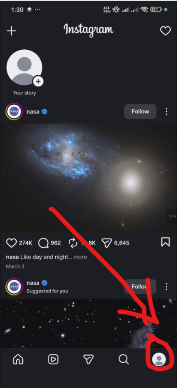
After that, click on the profile icon from the bottom right side.
Up to this point, perhaps everyone knows how to do this. But now I will show the real trick—how you can create 4 accounts with one single mail, that's what I am going to show. Please pay close attention.
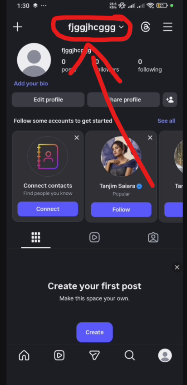
Entering the profile, you will see the username displayed at the top; click on the username.
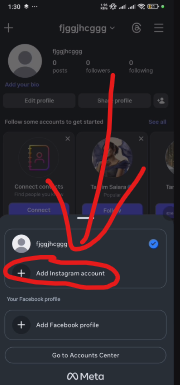
Now here you will see 'Add Instagram Account' written; click on it.
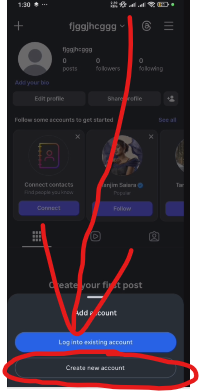
Click on Create new account.
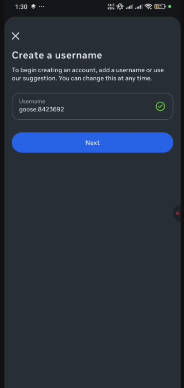
Then enter a new username again, and this way you can create four accounts. Now it will not ask you for any email or phone number. You can log in to four accounts with their usernames and the same password. In this manner, each time you create one account with an Outlook mail, and from there you can create four more accounts. I tried my best to explain; I don't know how well I could explain it. Still, if there are any mistakes, please look upon them with forgiveness. If you have any trouble understanding, I have provided the video below; watching the video will help you understand completely and even better. In the second part, I will show you how to automatically create accounts using a terminal bot—just click the start button, and whether on your computer browser or emulator, mobile version and computer version both, how it creates accounts automatically. You can watch the video, as these have already been shown in the video. In the next post, I will share those along with screenshots and terminal commands. Until then, everyone stay well, stay healthy, and stay with TrickBD.
If you like this and want to learn new things like this, please subscribe. Thank you. Channel Link