
Leave a Review


I have three Gmail accounts of my own—one personal, one for work, and another just for online sign-ups. Managing these three used to drive me crazy. Sometimes I sent office emails from the wrong account, and sometimes I could not even find important emails. Later, after changing a few settings, things became much easier. Today, I will explain that step by step.
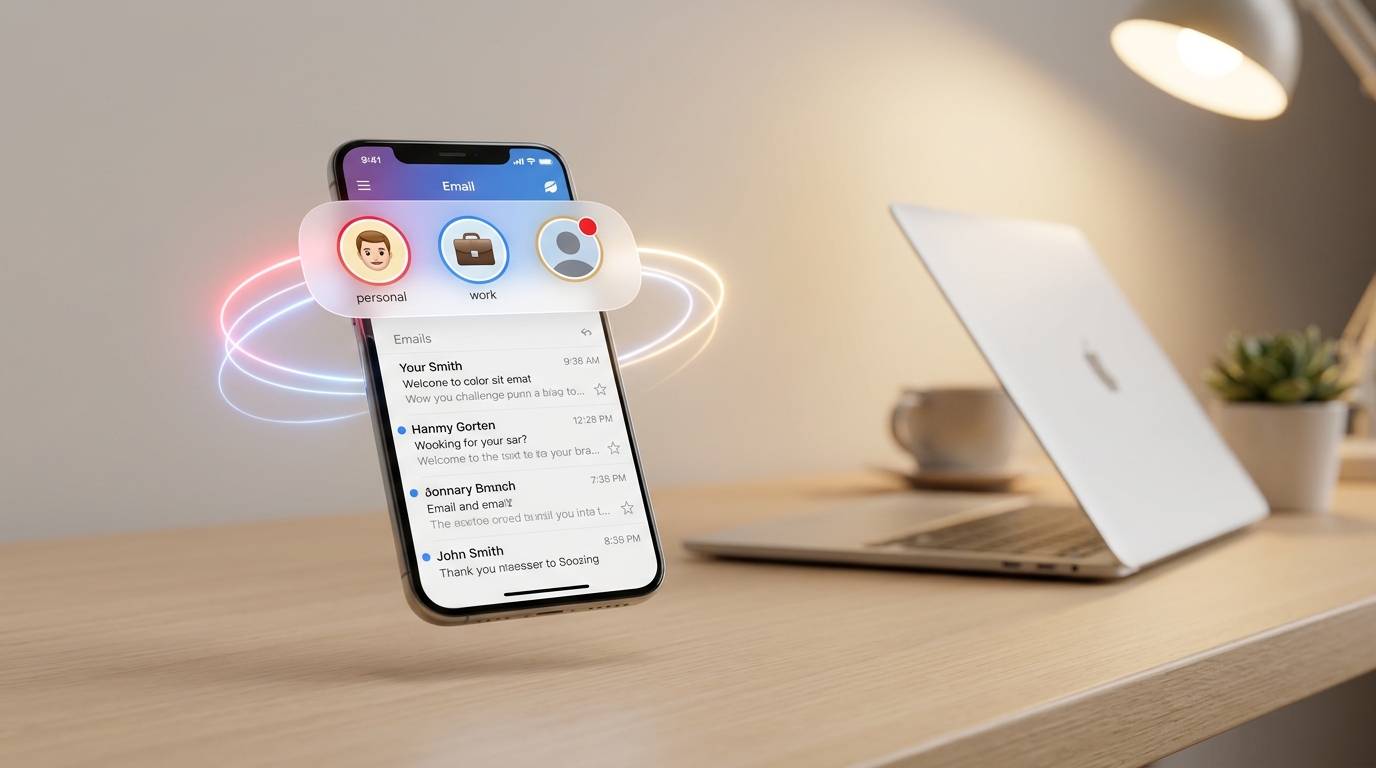
First, adding an account. Open the Gmail app and tap the profile picture in the top-right corner. You will find the Add another account option below. Choose Google there and sign in with the new Gmail address and password. That's it, the account has been added. You can add as many accounts as you need in the same way.
Now, switching accounts. You do not have to log out every time you want to switch accounts. Just tap the profile picture, and a list of all accounts will appear. Tap the one you want, and the inbox will switch immediately.
And if you want to see all of them together, select All inboxes from the side menu—all emails from every connected account will appear in one unified place.
I keep two things set up separately to maintain total control:
First, notifications. I have set one notification sound for my work account and another for my personal account—when my phone rings, I immediately know which one is urgent. You can change this directly from Settings inside each individual account.
Second, check the 'From' address before sending. When composing an email, always tap the 'From' line to see which account it is being sent from. This one simple habit has saved me from the embarrassment of sending office emails from my personal address.
One warning is also necessary. If you share your phone with someone or have added your account to someone else's phone, do not forget to remove it when you are done. Just go to Accounts from your phone's Settings and select Remove account.
Also, use a separate strong password and enable two-step verification for each account—so that the password of one account cannot be compromised to access the others.
Once you organize these simple settings, managing multiple Gmail accounts will no longer be a hassle. Instead, it will keep your personal and professional communications neatly separated and help you work much faster.