
Leave a Review


Last month, my data ran out halfway through a long bus journey. That was when I decided to learn how to properly watch videos offline. Many people visit third-party “downloader” websites, which can put their accounts at risk and also violate copyright rules. However, YouTube itself has legal ways to do this. Let's take a look:
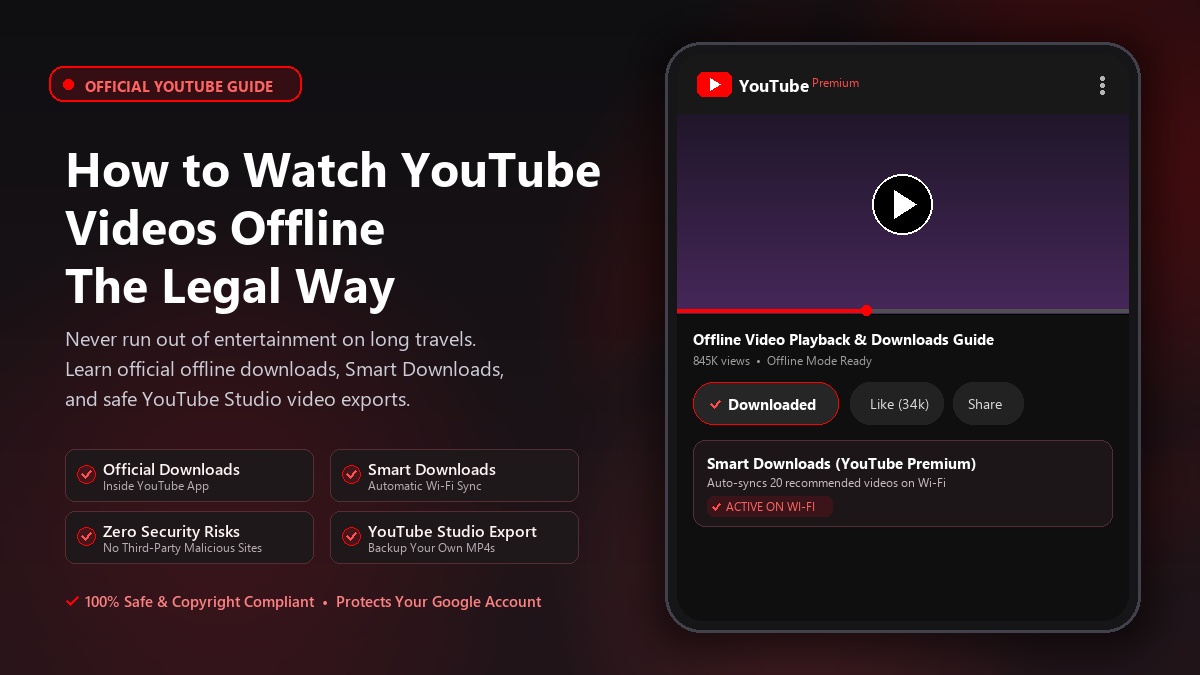
If you have a Premium subscription, you will find a Download button below the video.
You can also download videos on a computer by visiting youtube.com through Chrome, Edge, Firefox, or Opera and following the same steps. Remember, these downloads stay inside the YouTube app—you will not get them as separate video files. You also need to connect to the internet from time to time; otherwise, the downloads will expire.
You can download videos you uploaded yourself as MP4 files through YouTube Studio. Go to the Content tab, click the three-dot menu beside the video, and select Download/Save to Device. This is great for keeping backups.
Go to Background & downloads in YouTube Premium's settings and turn on Smart Downloads. While connected to Wi-Fi, YouTube will automatically download videos it thinks you may like. Just check once before your journey.
Using YouTube's built-in download feature keeps your device completely safe from malware, phishing popups, and malicious third-party converters. Plus, it respects content creators' copyright and supports the platform.
I am currently using the free Premium trial for the duration of my journey. Which method do you use? Let me know in the comments below!