

Leave a Review


Assalamu Alaikum friends, how are you all?
Are you annoyed by irritating ads inside apps? Today, I will show you the complete process of removing ad SDKs from an APK.
For the demo, I used the File Translator Subtitle SRT v1.57 app, which had four different ad networks included. Below, I explain every step with the original screenshots.
⬇️ Download: No-Ads APK
Download No-Ads APK
TeraBox link
If you want to do this from your phone, you can also use MT Manager to perform the same steps, including decompiling, editing, rebuilding, and signing.
First, decompile the APK using apktool. This separates the internal code (smali), AndroidManifest.xml, and resources.
apktool d original.apk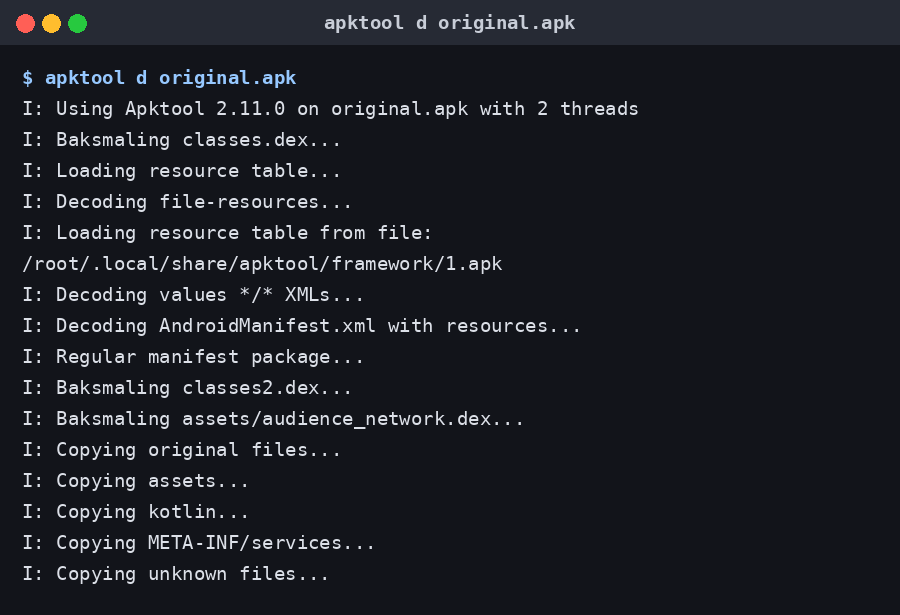
Notice the line “Baksmaling assets/audience_network.dex…”.
This is Meta's Audience Network ad SDK, which was hidden inside the APK.
After decompiling, open AndroidManifest.xml.
These were found in this app:
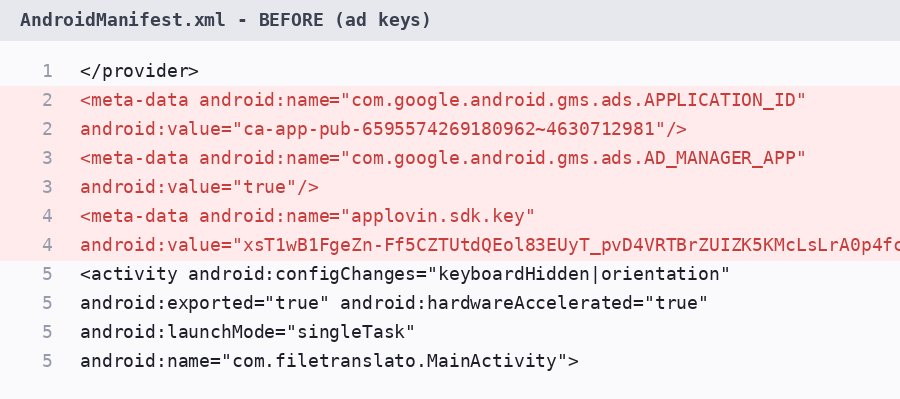
The three red-marked lines are:
APPLICATION_IDAD_MANAGER_APPThese identify the ad networks.
Now look at the code size:
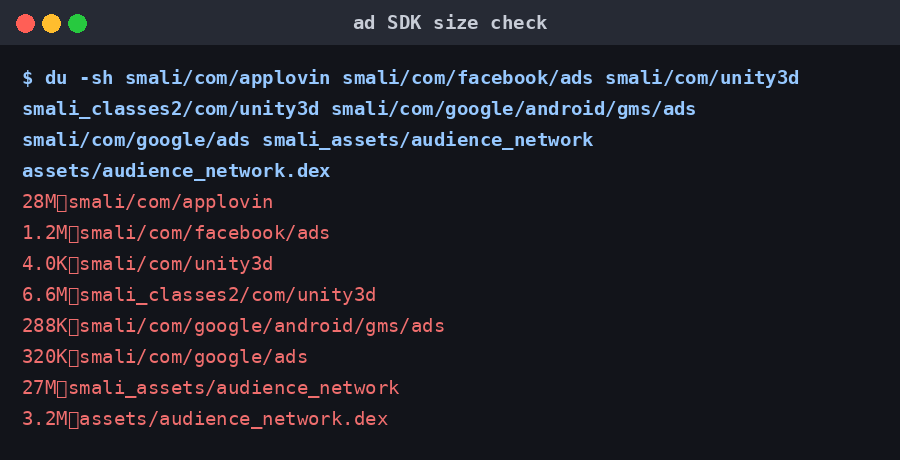
🔍 Four ad SDKs were found in this app:
Their activities, services, and provider entries were also present in the manifest.
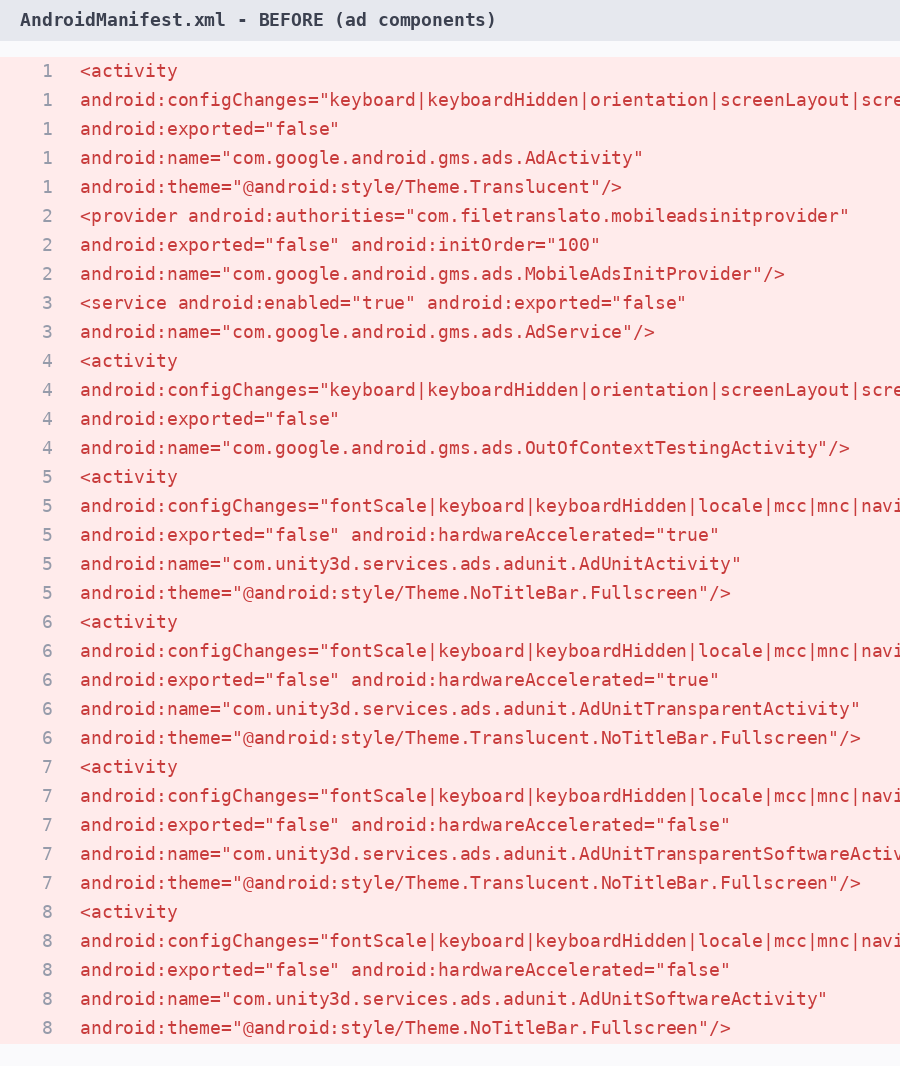
Now remove the ad-related entries from AndroidManifest.xml:
A total of 39 lines were removed.
After the cleanup, the manifest looks clean:
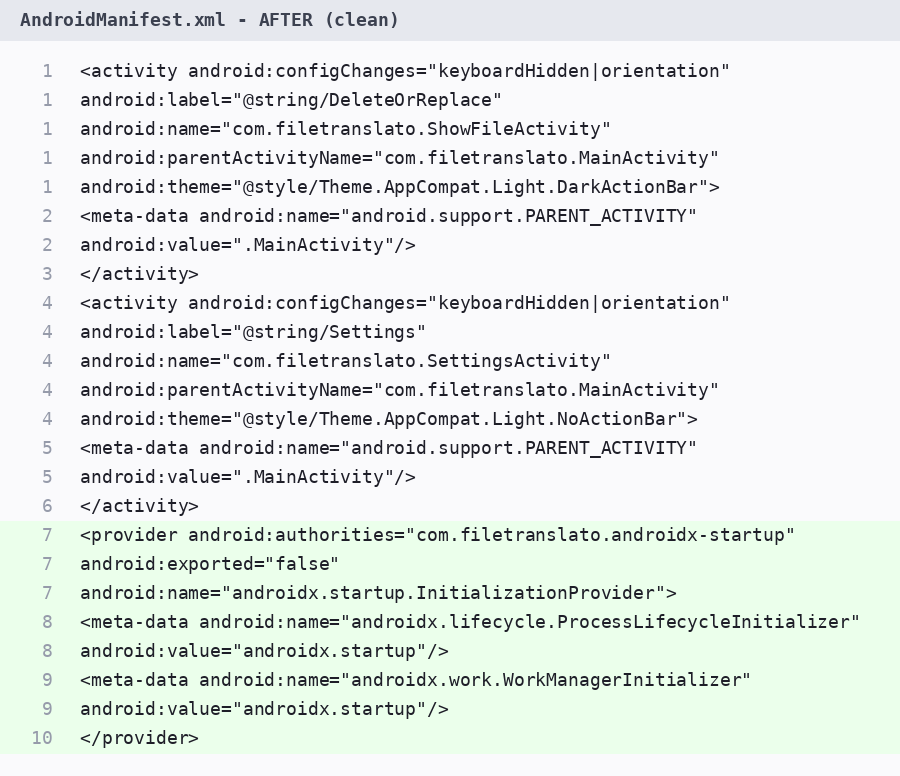
The green-marked lines are the app's own components. They remain intact. Only the Unity ad line has been removed.
Now remove the complete code of the ad SDKs from the smali folders:
rm -rf smali/com/applovin smali/com/unity3d \
  smali_classes2/com/unity3d smali/com/facebook/ads \
  smali/com/google/android/gms/ads smali/com/google/ads \
  smali_assets/audience_network assets/audience_network.dex
Along with this, 231 AppLovin resource files such as icons and layouts and 800+ ad entries from the values folder were also deleted. Otherwise, the APK rebuild can produce errors.
Now rebuild the modified APK:
apktool b decompiled -o rebuilt-unsigned.apk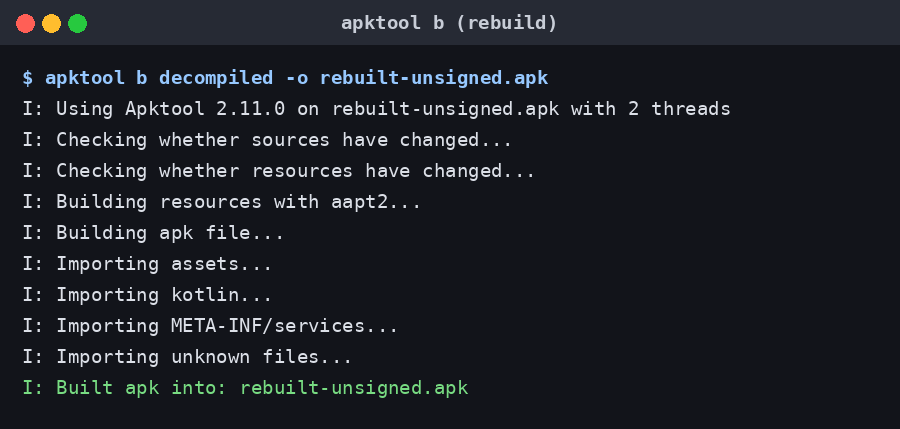
The modified APK cannot be installed using the previous signature.
So, you need to create a new key and sign the APK.
keytool -genkeypair -keystore debug.keystore -alias androiddebugkey …Then sign the APK:
apksigner sign --ks debug.keystore --out filetranslato-noads.apk rebuilt-unsigned.apkFinally, verify the signature:
apksigner verify --print-certs filetranslato-noads.apk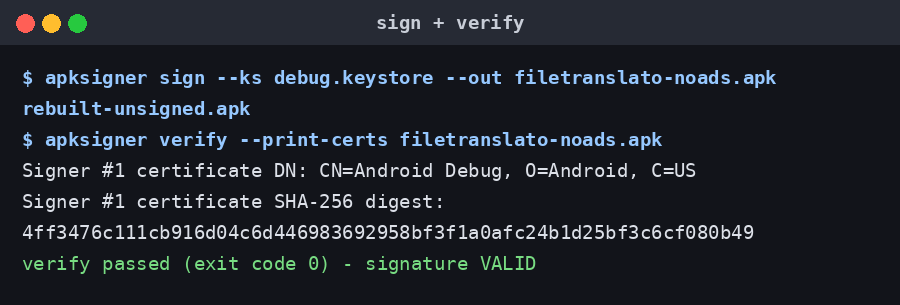
apksigner verify passedcom.filetranslato, v1.57, remains the same