
Leave a Review


For Facebook page shops, home businesses, and online product sellers, the biggest problem for small business owners is spending time answering the same types of customer questions again and again. “How much does it cost?”, “How long will delivery take?”, “When does the showroom open?”—you have to type the same answers twenty times a day.
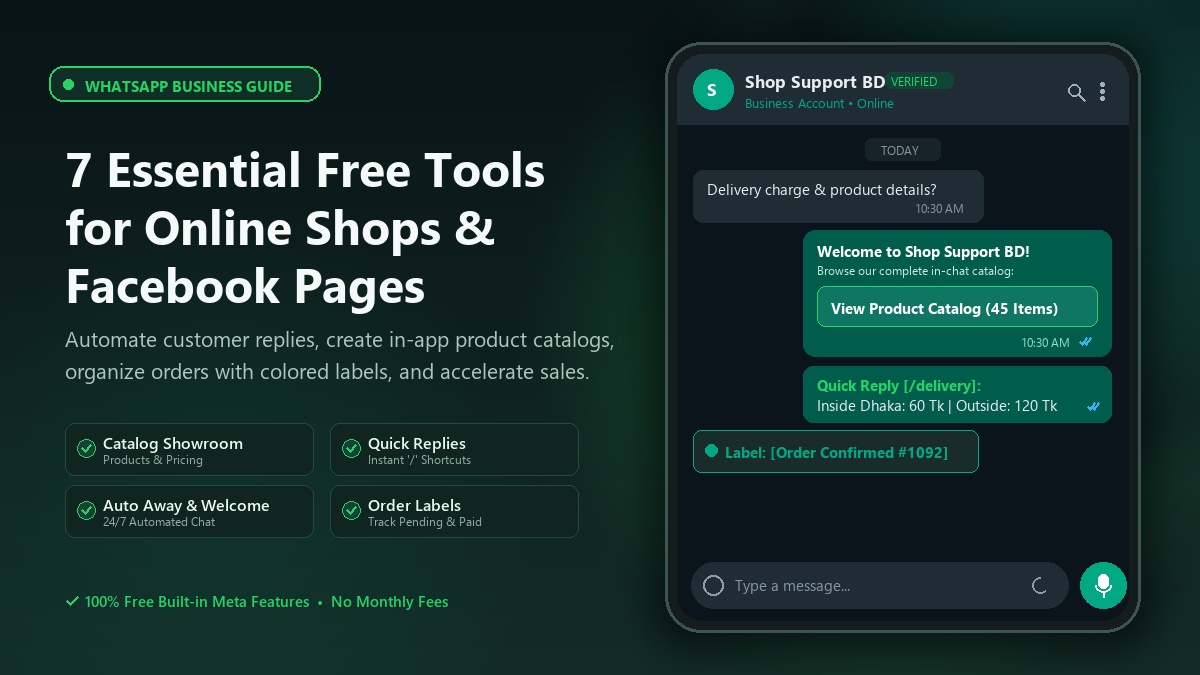
Meta's WhatsApp Business app is made for this purpose. It looks like regular WhatsApp, but inside it has a collection of free tools for small businesses—product catalogs, auto-replies, shortcuts for ready answers, and labels to organize chats. Everything is free, with no monthly fee. In this post, I have organized those tools.
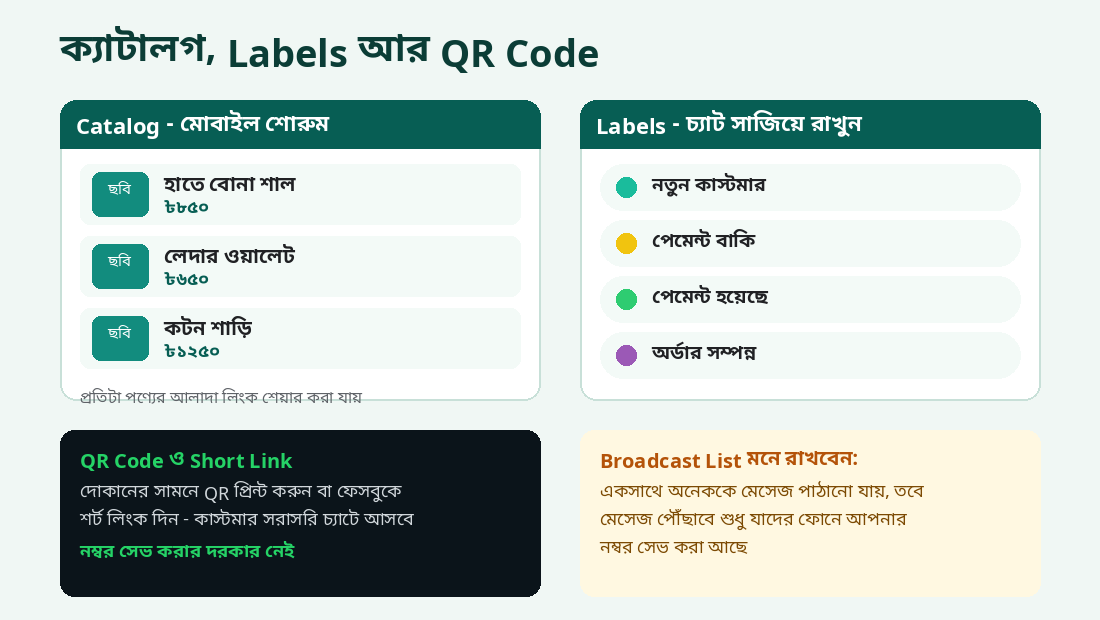
From the Business tools → Catalog menu, you can add each product with its photo, name, price, description, website link, and even a product code. When a customer asks, “How much does it cost?”, you can send the full catalog or a link to a specific product in just two taps. Similar products can also be grouped into Collections.
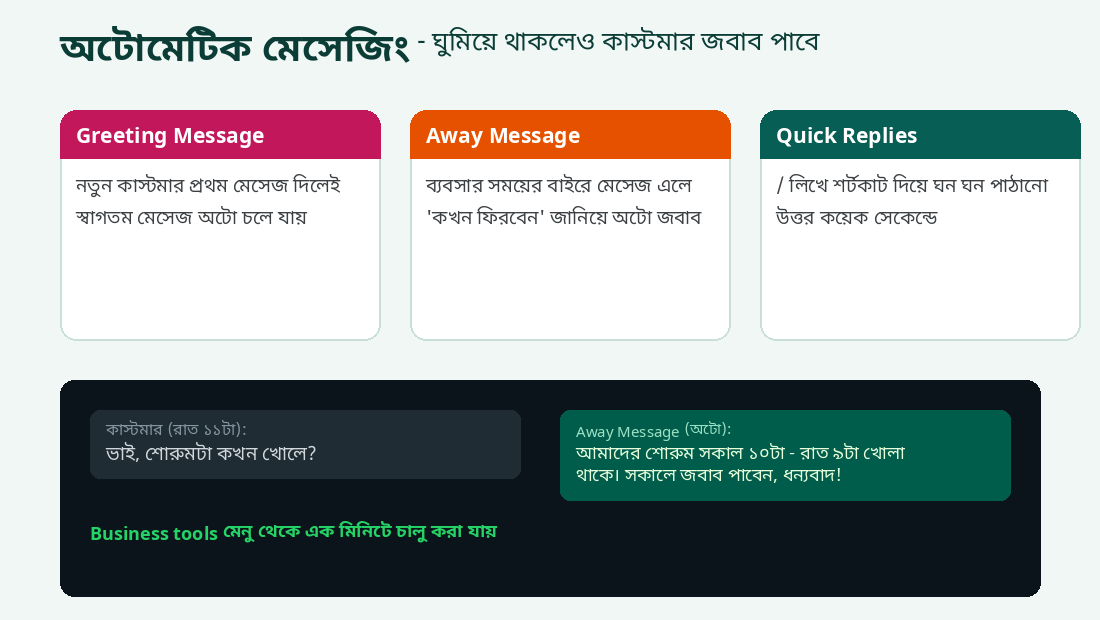
When someone messages your business for the first time (or messages again after 14 days of inactivity), a welcome message is sent automatically. Turn it on from Business tools → Greeting message and write your own message—for example, “Assalamu Alaikum! Thank you for staying with us. How can we help you?”
If a customer messages you at 11 PM, an automatic reply will be sent even while you are sleeping—for example, “Our showroom is open from 10 AM to 9 PM. You will receive a reply in the morning.” Set your schedule in Business tools → Away message—Always send, Custom schedule, or Outside of business hours (according to the hours listed in your Business profile).
Save the answers you send repeatedly—delivery charges, payment numbers, and addresses—as shortcuts. Press / in a chat to see your saved replies, choose one, and send it. Go to Business tools → Quick replies, tap + to create one, and give each reply a shortcut name (such as /delivery or /payment).
As the number of customers grows, it becomes difficult to remember whose order is pending and who still has a payment due. Use Labels to organize chats with colored tags—“New Customer,” “Order Confirmed,” “Payment Pending,” and “Delivered.” Press and hold a chat, select the Label option, and add a tag. Later, filter chats by label from the side menu. You can also create new labels of your own.
From Business tools → QR code / Short link, you can get a QR code and link that take people directly to your business chat. Print the QR code and display it at your shop's cash counter, or add the short link to your Facebook page or Instagram bio. Customers can open a chat without saving your number on their phones.
You can send news about new products or offers to many customers at once using a Broadcast list. Each person receives the message in a separate private chat, not in a group. However, one important thing: broadcast messages will reach only those people who have saved your number in their phone contacts. So it is important to ask customers to save your number.
Communication with customers is what matters most in a small business. Once you set up these free WhatsApp Business tools, you can save hours every day—and customers will also feel that your business is well organized. Download the app today and set up your Business profile!