


CapCut Pro Free Trial: How to Start It and Avoid Charges
AroraShop Editorial & Fulfillment Team
Digital Gaming & FinTech Specialists (Dhaka, BD) • UpdatedCapCut Pro Free Trial: How to Start It and Avoid Charges
To get the CapCut Pro free trial, update the CapCut app, sign in with an account that has never used a trial, tap any Pro feature or the Pro banner, and confirm the 7-day offer. Then cancel before the seven days end if you do not want to pay. The trial turns into a paid plan automatically.
The catch is that the offer is not open to everyone. It is limited to new users in supported regions, and it normally asks for a payment method up front. If you live in Bangladesh and pay with bKash or Nagad instead of an international card, you may not see the offer at all. Others start the trial and find a charge on their card within minutes because they skipped the price screen.
This guide covers who qualifies, how to start the trial on phone or desktop, and how to stop an unwanted charge. It also covers what to do when no trial shows up. AroraShop sells CapCut Pro as a 30-day package you can pay for locally, so the last step covers that route as a paid option, not a trial.
What the CapCut Pro free trial gives you
The trial gives you 7 days of full Pro access for new users in supported regions. CapCut offers it only in select countries and regions, and availability can change, so treat the offer screen in your own app as the final answer.
How long it lasts and who qualifies
Here is what to expect before you start.
| Detail | What to expect |
|---|---|
| Length | 7 days |
| Who gets it | New users in supported regions |
| Access | All Pro features |
| Payment method | Usually required to start |
| After day 7 | Converts to a paid plan unless you cancel |
The trial is free only if you cancel in time, so treat the end date as part of the offer.
Which Pro features you can test
During the trial you can use the same tools as a paying subscriber. Reported highlights include 4K export, advanced transitions and premium effects, and Pro exports have no watermark. Do not waste the week on casual tapping. Pick one real project and use the trial to test what you would pay for.
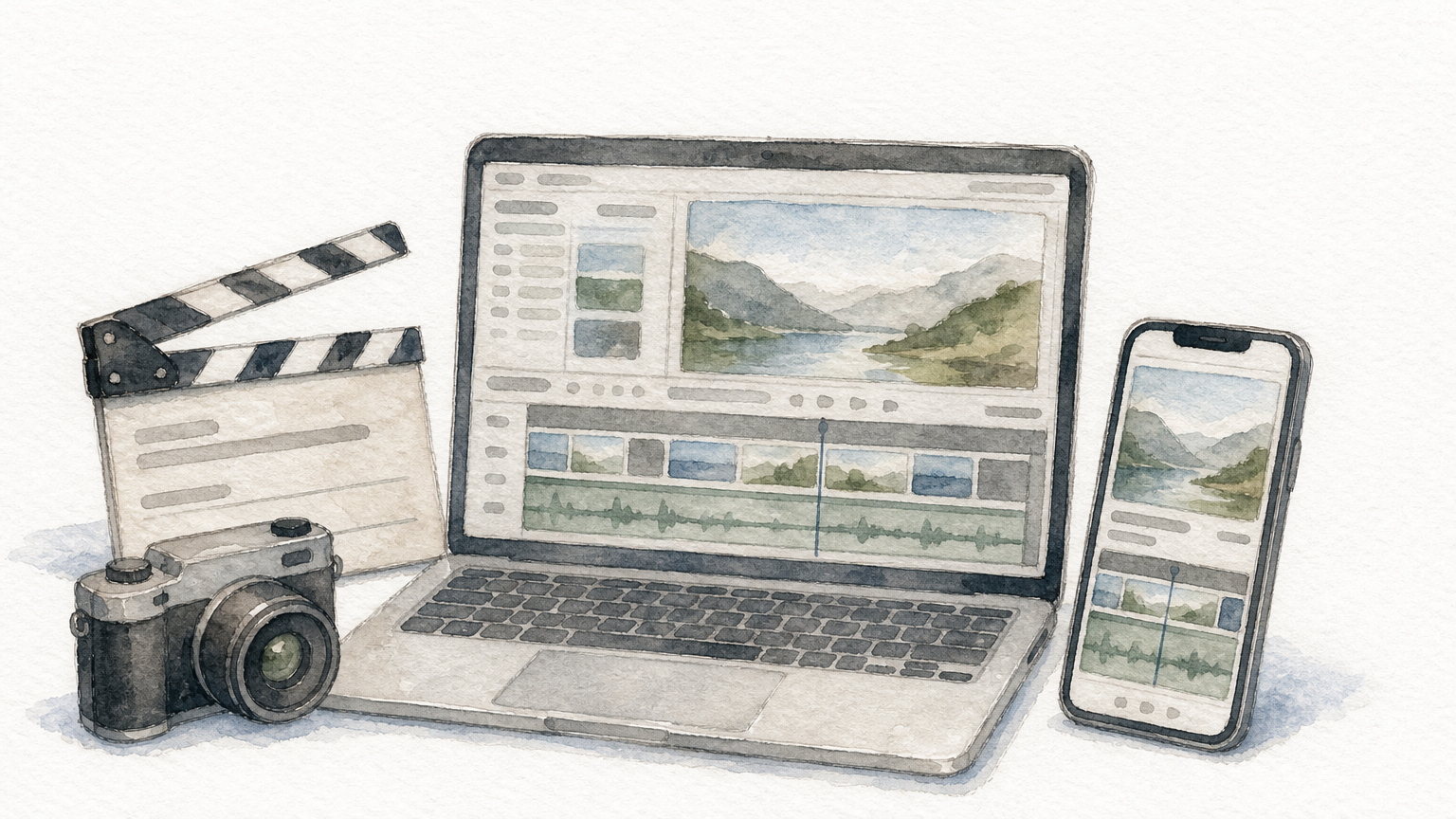
- Export one clip in 4K and check the file.
- Try the Pro-only effects and transitions you would actually use.
- Open the same project on your phone and on a PC to see if the workflow suits you.
Step 1. Check that you are eligible
You are eligible when you are a new user, your region is supported, and the Pro offer screen shows a free trial button. Run through the conditions first so you do not waste time.
Confirm the account and device conditions
Check each of these before you start:
- You have never started a CapCut Pro trial on this account or device.
- The app is updated to the latest version from Google Play, the App Store or capcut.com.
- You have a payment method that your app store or CapCut accepts.
- You are signed in to the account you want to keep, not a throwaway.
Do not hunt for tricks to repeat a trial. The offer is meant for new users, and a second attempt on the same device or account usually shows no trial.
Look for the offer inside the app
Open CapCut and tap a Pro-marked tool, or the Pro banner. If you are eligible, the screen shows a label such as "Try free for 7 days". The wording differs by app version. If you only see a plain subscribe button, the trial is not available to you.
Ignore videos, newsletters and posts that push a link promising free Pro. The trial starts only inside the official app or on capcut.com. Anything else is a phishing risk.
If the app does not show a free trial button, no outside link will create one.
Step 2. Start the trial on phone or PC
Start from the Pro offer screen, read the price details, confirm your payment method, and check that your account shows Pro as active. The flow is nearly the same on every device.
Start on Android or iPhone
- Install or update CapCut, then sign in.
- Tap a Pro tool or the Pro banner.
- Choose the plan that shows the free trial.
- Read the price screen and note the date billing begins.
- Confirm with your Google Play or Apple payment method.
- Open your profile or the Pro screen and check that Pro is active.
Set a phone reminder right now. If you start on Monday at 6 pm, the trial ends the following Monday evening. A reminder on Saturday gives you room to cancel.
Start on a PC or laptop
Download CapCut for desktop from capcut.com, sign in, and click the Pro badge or the Pro prompt on the export screen. The offer follows the same logic, with a payment screen where you enter a card. If you already started the trial on your phone, you do not need a second one. Sign in with the same account and Pro unlocks on the desktop app too.
One account, one trial: start it on the device you edit on most, then sign in elsewhere.
Step 3. Avoid the unexpected charge
You avoid the charge by reading the price screen before confirming, and by cancelling at least a day before the trial ends. Most complaints come from skipping one of these two habits.
Read the price screen before you confirm
The screen tells you what happens after the free week. One reported case from a UK user showed a 7-day trial, then a £1 first month, then £10 a month. That user was also asked to authorize a £10 payment while starting the trial. Prices and intro offers differ by country, so look for the first billing date and the recurring price on your own screen. If the amount or date is unclear, back out.
Cancel before day 7 ends
Cancel in the place where you subscribed. A subscription started through an app store is managed there, not inside CapCut.
- Google Play: open Play Store, tap your profile picture, then Payments & subscriptions, Subscriptions, CapCut, and Cancel. Google explains the steps in its guide to cancelling a subscription.
- iPhone: open Settings, tap your name, then Subscriptions, CapCut, and Cancel.
- Desktop or web: cancel through the subscription settings of the account you paid with.
Cancel early, not on the last evening. On both app stores, cancelling during a trial normally lets you keep using Pro until the trial ends. Confirm that on the cancellation screen, then screenshot it.
Cancelling on day 1 and using all seven days costs the same as cancelling on day 6, and it removes the risk of forgetting.
Step 4. Use a paid month if no trial appears
If the trial does not show, or you have no card to start it, a one-time 30-day Pro package is the practical fallback. It is a paid option, so compare the costs honestly.
Why the trial may not show up
The usual reasons are an unsupported region, a previous trial on your account or device, or a payment method the store does not accept. In Bangladesh, many users have no international card, which blocks card-based trials entirely. Fixing the app version or signing in again will not change any of these.
Paying 250 ৳ for 30 days
AroraShop sells a CapCut Pro Subscription 30 Days for 250 ৳, paid with bKash, Nagad or Rocket. It arrives as a digital voucher, listed as instant (1-5 minutes). It works on Android phones and iPhones, and the 30 days start after activation. That is about 8.3 ৳ a day.
| Free trial | 30-day package | |
|---|---|---|
| Cost | Free, then paid plan | 250 ৳ one time |
| Length | 7 days | 30 days |
| Payment | Card or app store billing | bKash, Nagad, Rocket |
| Watermark | None with Pro | None with Pro |
Check the refund rule before you buy. The listing says no refund after dispatch, so make sure the device and account you want to use are ready first. If you have one video project of two to four weeks, one 250 ৳ package covers it. The seven-day trial would not.
A trial is a test drive, so if you already know you need Pro for a month, paying locally is simpler.
Start the trial, then set the reminder
The route is simple. Check your eligibility in the app, start the trial from the official Pro screen, read the billing date, and set a reminder before day 7. If the offer never appears, do not chase outside links. Use a paid option you can actually complete.
If you want Pro for a full month without a card, see the CapCut Pro 30-day package on AroraShop and pay with bKash, Nagad or Rocket.
Sponsored
Categories
Sponsored
Recent Posts



Sponsored