
Leave a Review


A Google gift card buy works in four steps: confirm your Play Store country, pick a seller that sells cards for that country, pay and collect the code, then redeem it in the Play Store. Yes, you can buy a Google Play gift card online. It arrives as a digital code. The one rule that decides whether it works is that the card's region must match your Google account's country.
Most failed purchases are region mistakes, not scams. Someone sees a $100 card at a good price, pays, and then Google rejects the code. Digital codes are rarely refundable once they are sent, so the mistake costs real money. Fake sellers and messages that ask you to pay in gift cards make it worse, and a safe purchase needs a few checks first.
This guide walks you through those checks in order. You will learn how the cards work, how to find your account country, where to buy, how to pay, and how to redeem the code. AroraShop is a Bangladesh store for digital goods that sells a Google Play card, so we also explain where our own card does and does not work.
A Google Play gift card, sometimes called a Play Store gift card, adds prepaid balance to a Google account. You spend that balance in the Play Store on apps, games, in-app items, and subscriptions. Google says you can get physical cards from authorized retail stores, and digital cards, called gift codes, by email, SMS, or other channels. Google's help page on gift cards explains the basics.
When you buy online from a seller, you receive a digital code and no plastic card. You type that code into your account and the balance appears.
A Google Play gift card is only as useful as its region: the card's country must match your account's country.
Gather these four things first. They save you from the most common mistakes.
Your Play Store country is the one Google has on your payment profile, and you can see it in the app in under a minute. Menu names change slightly between app versions, but the path is usually this:
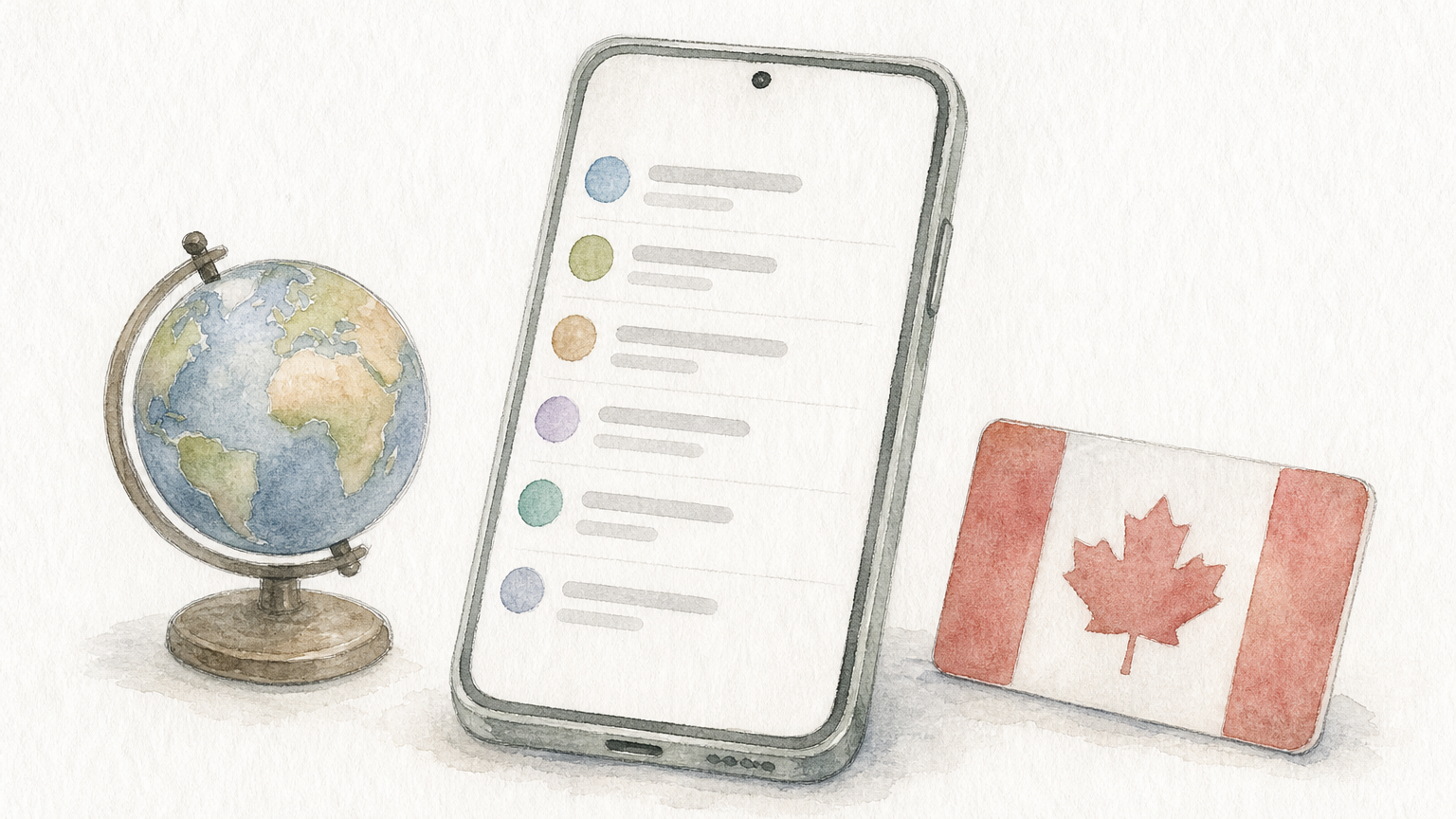
The country shown there is the region your gift card must match.
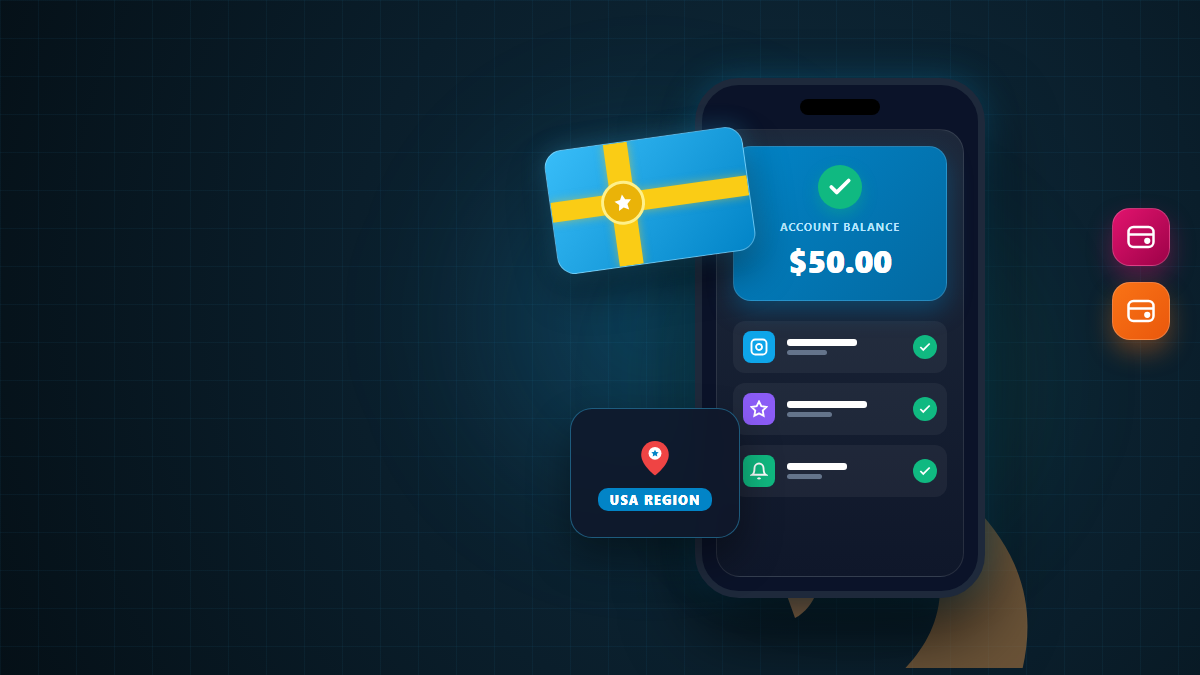
Buy only a card issued for that exact country. A US card works on a US-region account, and a card for another country will not work on yours. AroraShop's Google Play card is a US-region card, and its product page states that it cannot be used from Bangladesh.
If your account country is Bangladesh, do not buy a US card. Do not try a VPN or a made-up address to get around the rule, because that can put your account at risk. Check Google's help page for the countries where gift cards can be redeemed, and look at the payment options your Play Store offers under Payments & subscriptions.
Confirm your account country first, because a card for the wrong region is wasted money.
You can buy a Google Play gift card online from a few kinds of sellers. Each suits a different buyer, as the table shows.
| Route | Format | Best for | Watch out for |
|---|---|---|---|
| Google's own gift card pages | Digital | Countries where Google lists a direct option | Not offered in every country |
| Authorized retail store | Physical card | Buying in person | Check that the card is sealed and keep the receipt |
| Online digital code seller | Code by email, SMS, or on-site | Fast delivery | The seller must state region and amount |
| Local marketplace such as AroraShop | Digital voucher | Paying with bKash, Nagad, or Rocket | Our card is US-region and works only on a US-region account |
Start with the first row for your country, and move down the list only if it does not fit.
A trustworthy seller makes the region and denomination obvious on the product page. Then look for these signs:
AroraShop, for example, lists a 4.9/5 rating with Trustpilot and Google review links, and its support team replies on WhatsApp in under 15 minutes on average. Never buy from someone who messages you out of the blue.
A seller you can contact and verify is worth more than a slightly lower price.
Ordering a digital card takes a few minutes. On AroraShop it goes like this:
Check the price against the face value. AroraShop lists the $100 US-region card at 15,400 ৳, which works out to 154 ৳ per $1 of balance. Compare that rate with the exchange rate and any fees you would pay elsewhere.
Check the region once more before you press pay, because a code cannot be refunded after dispatch.
The product page lists delivery as instant, usually 1 to 5 minutes. If nothing arrives after that, contact support instead of placing a second order.
Redeeming takes under a minute, and it only works on an account of the matching region. Follow these steps:
The balance appears in your Google Play account at once, and you can spend it on supported purchases. You can also redeem on the web at play.google.com/redeem while signed in to the same account.
Redeem the code only on the Google account you plan to spend it from.
If the code fails, the cause is usually one of these.
Share a code only with Google when you redeem it. A real business will never ask you to pay a bill or fee with gift card codes.
To buy a Google Play gift card online safely, confirm your Play Store country, match the card's region to it, choose a seller you can verify, and redeem the code on the right account. The region check comes first because that is where most of the money gets lost.
If you need a card that fits your account, you can browse the gift cards at AroraShop. Read the region and amount on each product page before you pay.

Please login to live chat or contact via WhatsApp