



How to Send a Google Play Gift Card to Someone Safely
AroraShop Editorial & Fulfillment Team
Digital Gaming & FinTech Specialists (Dhaka, BD) • UpdatedHow to Send a Google Play Gift Card to Someone Safely
The quickest way to send a Google Play gift card to someone is inside the Play Store app. Tap your profile icon, choose Gift cards, pick an amount, enter the recipient's email address or copy a share link, and pay. The recipient opens the message and adds the balance to their own account. If you buy a card code from a store instead, you can send that code in a chat message and they redeem it themselves.
Two small mistakes ruin most gifts. Google Play balance is tied to a country, so a card bought for the wrong region just sits there unused. A share link sent to the wrong chat hands your money to a stranger. In Bangladesh there is a third hurdle: many people have no international card to pay inside the Play Store at all.
This guide walks through both routes in four steps. You will check the region first, then use the in-app gift flow, then see how to send a redeem code when you cannot pay in the app. AroraShop sells digital gift cards and accepts bKash, Nagad and Rocket, so we also show where that route fits and where it does not.
What to check before you send a gift card
Before you send anything, confirm the recipient's country and choose between two methods: gifting inside the Play Store, or sending a redeem code. Five minutes here prevents the most common failure, a gift that cannot be used.
Match the card to the recipient's country
Google Play balance works only in the country where the card was issued. A US card adds money to a US Google account and nothing else. Ask your friend which country their Play Store is set to. They can check it in the app under Settings, General, then Account and device preferences.
Region matters more than the amount. A $10 card in the wrong region is worth nothing to the person who receives it.
A Google Play gift only helps if the card's region matches the recipient's account country.
Choose between the two methods
Pick the method that fits your payment situation, not your taste. Both end with the recipient redeeming a balance.
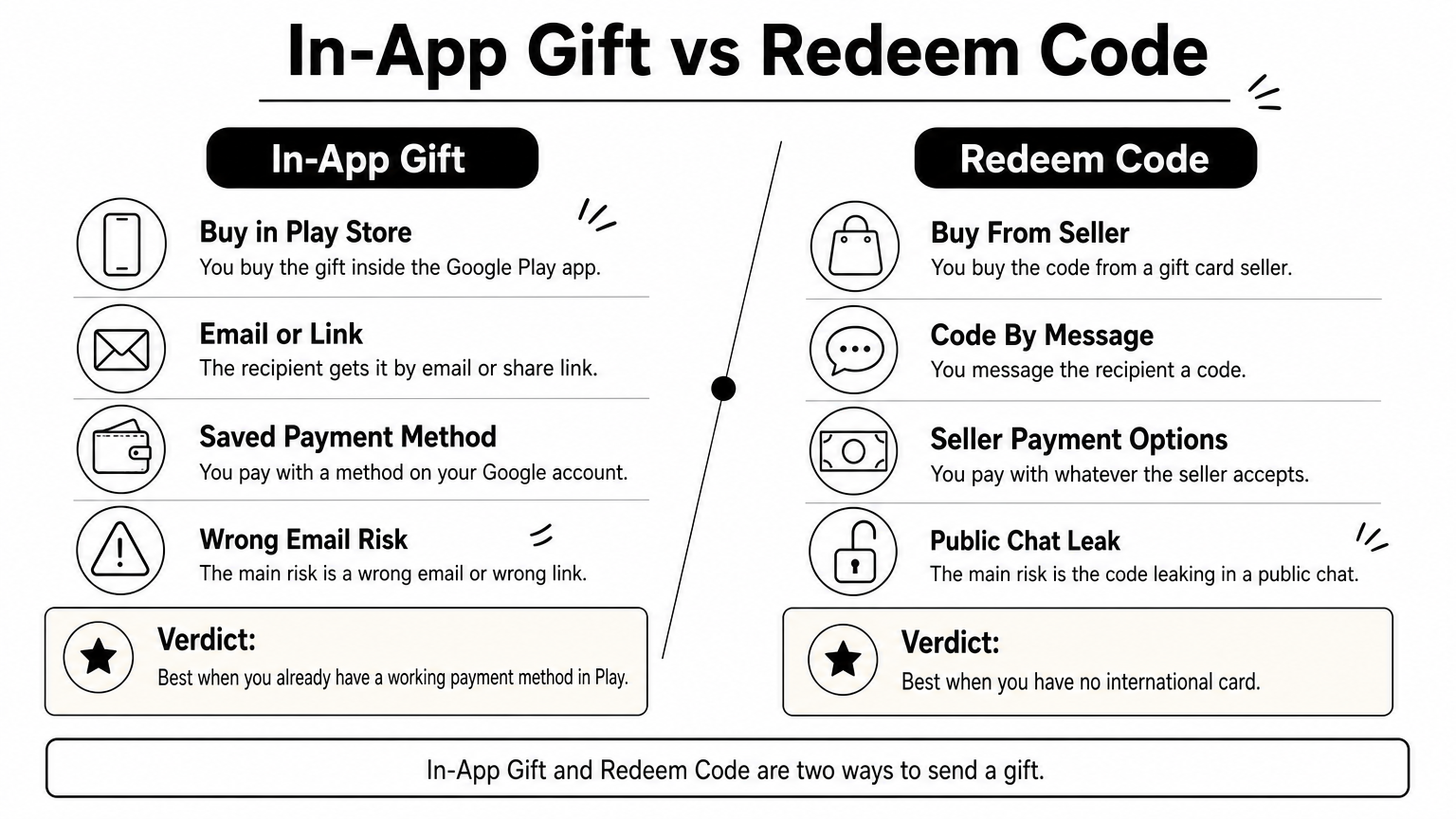
| In-app gift | Redeem code | |
|---|---|---|
| Where you buy | Google Play app | A gift card seller |
| How the recipient gets it | Email or share link | A code you message them |
| How you pay | A method on your Google account | Whatever the seller accepts |
| Best when | You already have a working payment method in Play | You have no international card |
| Main risk | Wrong email or wrong link | The code leaks in a public chat |
Step 1. Open the gift cards section in Google Play
Open the Google Play Store on your Android phone, tap your profile icon in the top-right corner, and select Gift cards. On some app versions, the same option sits under Payments & subscriptions, labeled Send a gift.
Follow the path on your phone
- Open the Play Store and make sure you are signed in to the account you want to pay with.
- Tap your profile icon at the top right.
- Tap Gift cards. If you do not see it, open Payments & subscriptions and look for Send a gift.
- Browse the Google Play option and choose it.
Fix a missing gift option
If the option does not appear, update the Play Store first. Google shows gift card features only to updated apps. Gifting is also not offered in every country, so a missing option can mean your account's region does not support it. In that case, skip to Step 4 and use the redeem code route.
If Gift cards is missing from your profile menu, update the Play Store, and if it is still missing, send a code instead.
Step 2. Choose the amount and the recipient
Pick one of the amounts Google Play shows, tap the gift option, then enter who should receive it. You decide here whether the gift travels by email or by a share link.
Pick the amount
Choose an amount the recipient will actually use. A small card covers one app or a month of a subscription. A larger one suits a game purchase. Remember that you pay the full amount, so decide it before you enter any details.
Add the recipient and a message
If you choose email, type the recipient's address carefully and check each letter. One wrong character sends the gift to someone else. Add a short message so the email does not look like spam, for example a birthday note with your name.
If you choose the share link, Google gives you a link that you paste into a chat. Share it only with the intended person. Anyone who opens that link can claim the gift, so never post it in a group.
Email is safer than a link because the gift is tied to one address, while a link works for whoever opens it.
Step 3. Pay and make sure the gift arrives
Review the summary, then pay with any payment method already saved on your Google account. After payment, the gift is sent and you should confirm that the recipient actually got it.
Review before you pay
Read the screen once more. Check the amount, the recipient's email, and your message. Treat the payment as final. A gift sent to a wrong address is hard to get back, so this is the moment to catch a typo.
If you do not have a payment method that works in your Play account, do not force it. Use the redeem code route in Step 4.
Confirm delivery
Tell your friend to expect the gift. Ask them to check their inbox and the spam folder for a message from Google Play. If you sent a link, send it in a private chat and delete the message after they confirm. The recipient taps the button in the email or opens the link, and the balance is added to their Google Play account.
Message the recipient right after you pay, because a gift in a spam folder looks like a gift that never came.
Step 4. Send a redeem code when you cannot pay in the app
If you cannot pay inside the Play Store, buy a Google Play gift card code from a seller and send the code yourself. The recipient then enters it under Redeem gift code. This route works well in Bangladesh, but only if the card region matches the recipient.
Buy the code and keep it private
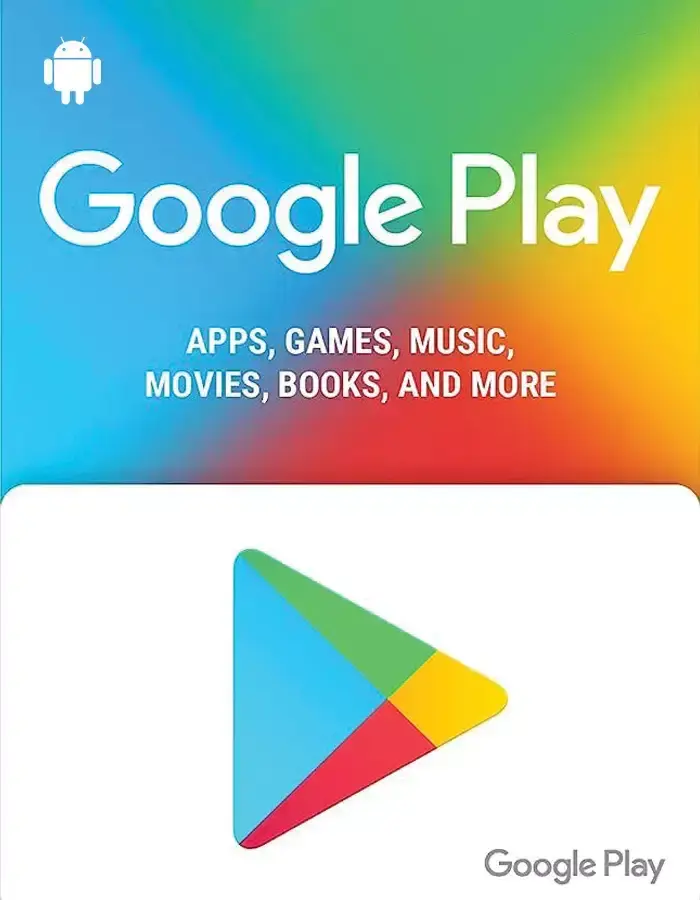
AroraShop lists a Google Play Gift Card as a digital voucher. The listed card is a US card in a $100 denomination at 15,400 ৳, which works out to 154 ৳ per dollar. You can pay with bKash, Nagad, Rocket or a card, and delivery is listed as instant, within 1 to 5 minutes. Refunds are not available after dispatch.
The product page states that this card cannot be used from Bangladesh and works only on US accounts. Buy it only for a friend or relative whose Google account is set to the United States. Read the product page before you pay, because a code cannot be refunded once it is sent.
Send the code and help them redeem it
Send the code in a private message. You can copy this template:
Hi [Name], here is your Google Play gift card code: [CODE]
Redeem it in the Play Store: profile icon > Payments & subscriptions > Redeem gift code.
It only works on a Google account set to [Country]. Enjoy!
Then your friend follows these steps:
- Open the Play Store and tap the profile icon.
- Tap Payments & subscriptions, then Redeem gift code.
- Type the code exactly as sent and tap Redeem.
A redeem code is as good as cash, so send it privately and ask the recipient to redeem it right away.
Send it right the first time
Sending a Google Play gift card comes down to three checks. Match the card to the recipient's country, use email instead of a loose link when you can, and tell the recipient to look for the gift. The in-app flow suits you if you have a payment method on your Google account. A redeem code suits you if you do not.
If you want to buy a code with local payment, you can check Google Play gift cards at AroraShop and pay with bKash, Nagad or Rocket. Read the region note on the product page first, and confirm your recipient's account country before you pay.
Sponsored
Categories
- Beginners Gamers 1
- Top Up 0
- Gift Card 3
- Announcement 0
- Technology 31
- Artificial intelligence 11
- Updates & Guides 278
- Games 3
- Business & Tech 1
- Freelancing & Career 2
- Tech Tips & Tutorials 1
- Make Money Online 1
- Tech & AI Tools 2
- Crypto & Airdrops 3
- Career & Business 1
- Money Making 2
- Guides 0
- Game Top-Up Guides 0
- Subscription Guides 1
Sponsored
Recent Posts
Sponsored