
Leave a Review


You get a file from a stranger. Or you download a free tool from a site you do not know. You want to open it, but you are worried. What if it harms your PC?
Windows has a built-in answer. It is called Windows Sandbox. It gives you a clean, temporary copy of Windows. You can open the file there. When you close it, everything inside is deleted.
In this guide, you will learn what Windows Sandbox is and how it works. You will see who can use it and how to turn it on. You will also learn how to test files step by step, and what mistakes to avoid.
Windows Sandbox is a light, isolated desktop inside Windows. Microsoft says it lets you run apps safely in isolation. Each time you open it, it starts fresh, like a brand-new Windows install. When you close it, all software, files, and settings inside are deleted for good.
It is a good place to try a file or app you do not trust. Your main Windows stays separate from it.
| Question | Short Answer |
|---|---|
| Is it free? | It is built into supported Windows editions. You do not buy a separate app. |
| Which editions work? | Windows Pro, Enterprise, Pro Education/SE, and Education. |
| Does Windows Home work? | No. Microsoft says Home is not supported. |
| What RAM do I need? | At least 4 GB. Microsoft suggests 8 GB. |
| What disk space do I need? | At least 1 GB free. An SSD is better. |
| Is anything saved? | No. Closing the sandbox deletes everything inside. |
| Can I run two at once? | No. Only one instance can run at a time. |
You do not need to know every detail. But a little background helps you trust the tool and use it well.
The kernel is the core part of an operating system. Windows Sandbox uses the Microsoft hypervisor to run its own separate kernel. This keeps the sandbox apart from your main Windows. Microsoft says it uses hardware-based virtualization for this.
A normal virtual machine needs its own Windows files. Windows Sandbox does not. It builds a fresh base image from the Windows already on your PC. Microsoft calls this a dynamic base image. Most Windows files do not change, so they can be shared with the sandbox.
This is why Windows Sandbox does not need a big download. Before you install it, the package is only about 30 MB, according to Microsoft.
Windows Sandbox uses smart memory and CPU sharing. Your main Windows can take back memory when it needs it. The host also decides when the sandbox gets CPU time. This helps your PC stay smooth while the sandbox runs.
Use it any time you are unsure about a file or app. Here are some common cases.
IT teams use it too. It gives them a quick, clean place to test software before using it at work.
Windows Sandbox is helpful. But it is not magic. You should know its limits before you trust it.
Windows Sandbox does not scan files. It does not tell you if a file is bad. It only gives you a safe place to open it. You still need to watch what the file does.
Microsoft says Windows Sandbox turns on the network connection by default. That means a bad app inside the sandbox may still connect to the internet. You can turn the network off with a configuration file. We show how later in this guide.
Microsoft built the sandbox to isolate apps from your PC. But no security tool gives a promise of total safety. Keep Windows updated. Follow the safety tips below. Treat unknown files with care, even inside the sandbox.
Microsoft says software installed on your main PC is not available in the sandbox. Starting with Windows 11 version 24H2, built-in store apps like Calculator, Photos, Notepad, and Terminal are also missing inside it. You may need to download the tools you want to use.
Your PC must meet a few simple needs. Check this list before you try to turn it on.
| Requirement | What You Need |
|---|---|
| Windows version | Windows 11, or Windows 10 version 1903 or later (Pro, Enterprise, or Education) |
| Edition | Pro, Enterprise, Pro Education/SE, or Education. Not Home. |
| Processor type | AMD64, or Arm64 on Windows 11 version 22H2 and later |
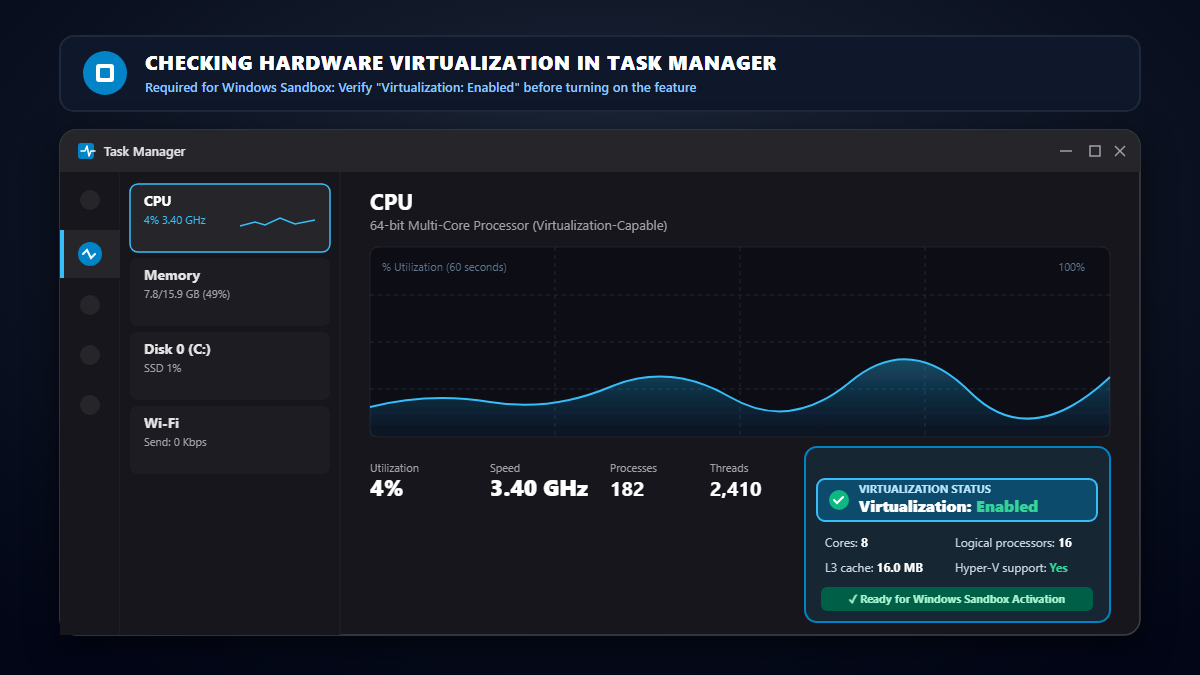
| Virtualization | Turned on in the BIOS or UEFI |
| Memory (RAM) | At least 4 GB (8 GB recommended) |
| Free disk space | At least 1 GB (SSD recommended) |
If it says Home, Windows Sandbox will not work on that PC.
You can check this in Task Manager.
If it says Enabled, you are ready. If it says Disabled, you must turn it on in your BIOS or UEFI settings. The exact steps depend on your PC brand. Search for your PC model and "enable virtualization" to find the right steps.
There are two easy ways. Pick the one you like.
If you cannot find Windows Sandbox in the list, your PC does not meet the requirements. Microsoft says the same.
Enable-WindowsOptionalFeature -FeatureName "Containers-DisposableClientVM" -All -OnlineDo you want to run it inside a virtual machine? Then you must turn on nested virtualization for that machine. Microsoft explains this in its install guide.
No. Microsoft says Windows Sandbox is not supported on Windows Home. This is a common question, so here are your options.
That is it. You now have a clean Windows to use. It looks like a normal desktop. You can use Microsoft Edge to browse and download files.
You can copy and paste a file from your main PC into the sandbox window.
Drag and drop may not work. Copy and paste is the safest method to use.
Do you have a link to a file or app? Do not download it on your main PC. Open the link inside the sandbox instead. That way the file never touches your real Windows at all.
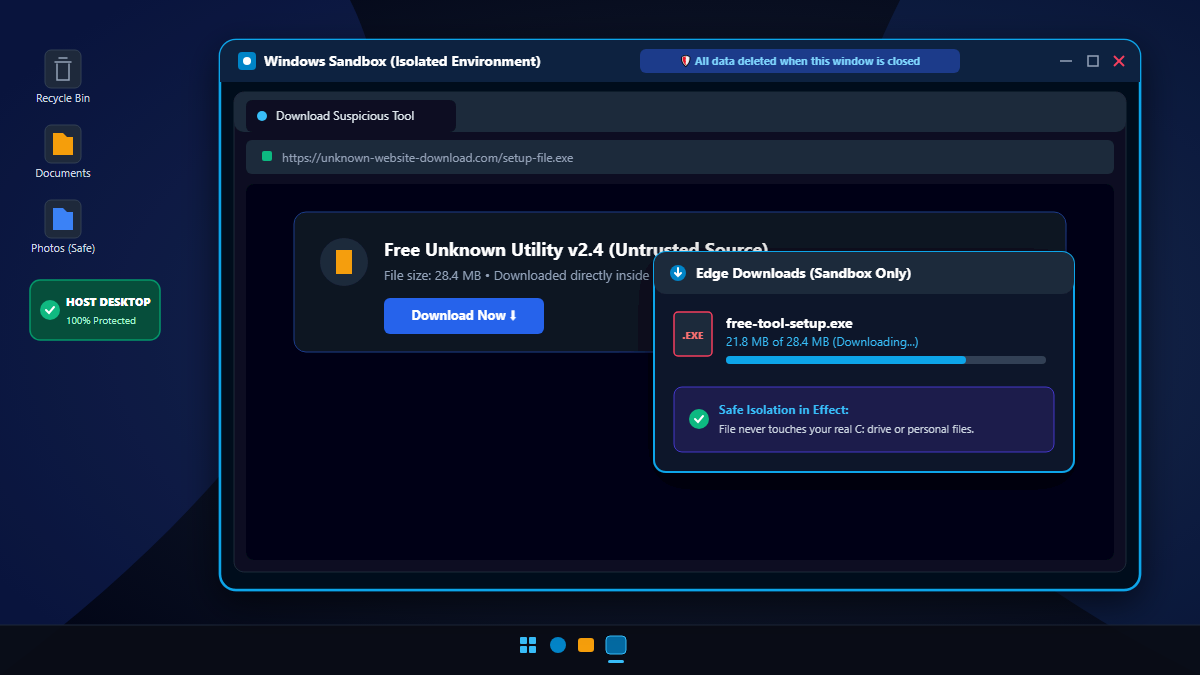
Follow these steps each time. A clear routine keeps you safe.
Remember one thing. A file that looks fine in the sandbox may not be safe. Some bad software hides its actions. If you still do not trust a file, do not use it.
Closing Windows Sandbox deletes everything inside it. This includes software, files, and settings. Microsoft says you get a fresh sandbox every time you open it.
This is great for safety. But it also means you must copy out anything you want to keep. Be careful with this. If a file is suspicious, you should not copy it out at all.
One note for newer Windows. Starting with Windows 11 version 22H2, data stays after a restart that you start from inside the sandbox. This helps with apps that need a reboot to finish setup. Closing the window still deletes everything.
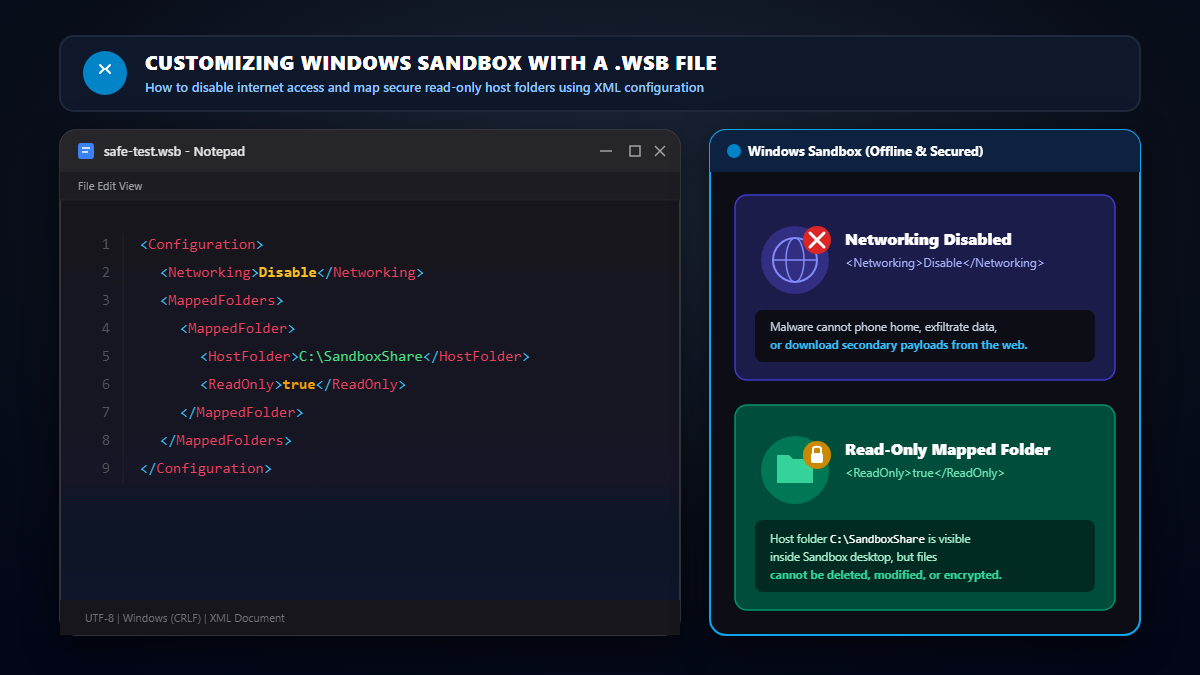
You can change how the sandbox starts. You do this with a configuration file. It is a small text file with the .wsb extension. It uses a simple XML format.
Microsoft's documentation and tech community posts list options like these:
This setup is good for testing a file that you do not want to reach the internet. First, create a folder named SandboxShare on your C: drive. Put the file you want to test inside it.
Next, open Notepad. Paste the text below. Save the file as safe-test.wsb. Choose "All files" as the file type so Notepad does not add .txt.
<Configuration>
  <Networking>Disable</Networking>
  <MappedFolders>
    <MappedFolder>
      <HostFolder>C:\SandboxShare</HostFolder>
      <ReadOnly>true</ReadOnly>
    </MappedFolder>
  </MappedFolders>
</Configuration>
Now double-click the file. Windows Sandbox opens with the internet off. Your shared folder is there to use, and the sandbox cannot change its files.
If the app you are testing needs the internet, this setup will not work for it. In that case, remove the Networking line. Then the network works again.
You may ask why you should not just use a full virtual machine (VM). Both are useful. They fit different needs.
| Feature | Windows Sandbox | Full Virtual Machine |
|---|---|---|
| Setup | Turn on one feature | Create and install a full VM |
| Saved data | Deleted when closed | Saved until you delete it |
| Resource use | Lighter, per Microsoft | Usually heavier |
| Best for | Quick, one-time tests | Long projects and custom setups |
| Other operating systems | No, it runs Windows only | Many types can run |
Microsoft describes Windows Sandbox as a light, disposable environment inside your current Windows. Its own FAQ says it is more resource efficient than a full VM. Choose a full VM if you need to keep your work between sessions.
Check three things. First, make sure you use Windows Pro, Enterprise, or Education. Second, confirm virtualization is on. Third, check that your Windows version is new enough.
Turn virtualization on in the BIOS or UEFI. Also confirm you have at least 4 GB of RAM. Restart your PC after turning the feature on.
This is normal. Windows Sandbox only lets you run one instance at a time.
Apps from your main PC are not inside the sandbox. You must install them there again each time. On Windows 11 version 24H2 and later, some built-in store apps like Notepad and Photos are also missing.
Microsoft says to check three things. Your device needs internet access. It needs Windows Update. It also needs the Microsoft Store.
On older builds, Windows Sandbox may not follow your mouse settings. Left-handed users may need to change this by hand inside the sandbox. Microsoft says newer Windows 11 versions follow the host settings.
You can remove it if you no longer need it.
Windows Sandbox is one of the easiest ways to test a risky file or app. It is built into supported Windows editions. It starts fast. It deletes everything when you close it.
Use it as a safe first step, not your only step. Keep your system updated. Do not enter real passwords. Turn off the internet when you can. And if a file still feels wrong, do not use it.
If you use Windows Home, you cannot use this feature unless you upgrade. Other options like virtual machine tools and online scanners can still help you stay safe.
It is used to run unknown or suspicious apps and files in an isolated Windows desktop. It is also used to test software and settings without changing your main PC.
It uses a separate kernel and hardware-based virtualization to isolate apps from your main Windows. This makes it much safer than opening a file on your main PC. But no security tool is perfect, so follow the safety tips.
It is included with supported Windows editions. These are Pro, Enterprise, Pro Education/SE, and Education. You do not buy it as a separate product.
No. Microsoft says Windows Sandbox is not supported on Windows Home edition.
No. Closing it deletes all software, files, and settings inside. You get a fresh copy the next time you open it.
Windows Sandbox is built to keep apps inside it. But no tool can promise total safety. Keep Windows updated. Share only read-only folders. Do not enter real passwords inside the sandbox.
Yes, by default. You can turn it off with a .wsb configuration file.
Microsoft lists at least 4 GB of RAM. It recommends 8 GB for better results.
No. Microsoft says only one instance can run at a time.
Windows Sandbox is light and disposable. It runs inside your current Windows and deletes itself on close. A full virtual machine keeps its data and can be set up in many ways, but it needs more setup.